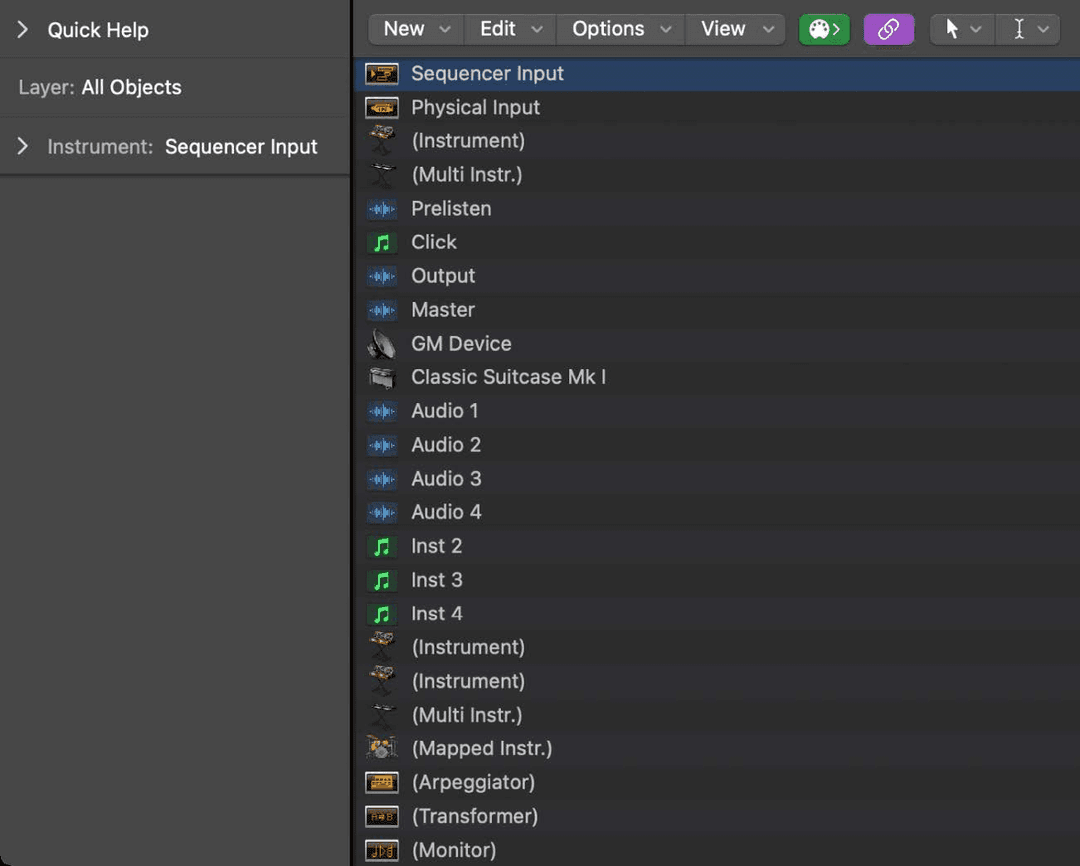
The deepest, strangest room in Logic: a virtual wiring diagram of your entire MIDI setup, where data is patched between objects like a modular rig.
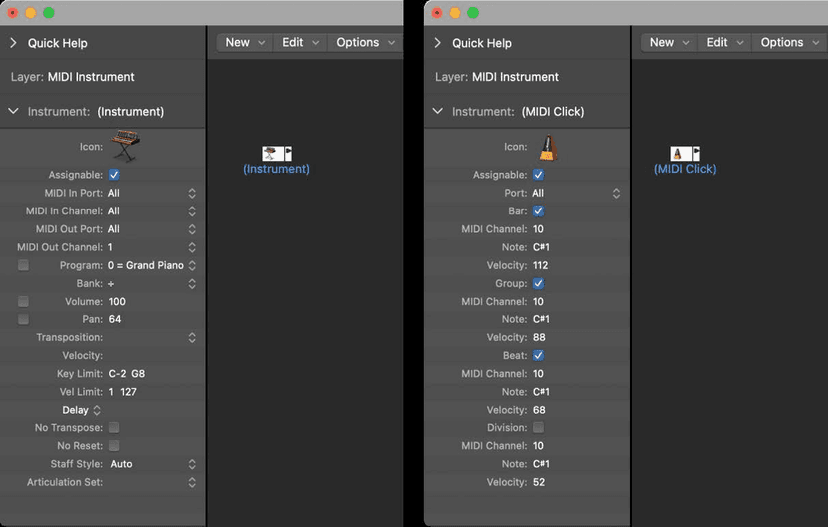
Apple's own guide calls it a legacy feature, kept for compatibility with projects from older versions of Logic. Read that as permission to skip this chapter - you can have a long career in Logic and never open this window.
It is here for two reasons. When you do need it, nothing else will do. And understanding it explains a great deal about how Logic works underneath the parts you use every day.
You are already using it
Create a software instrument or external MIDI track and Logic silently builds the Environment objects that track needs. The channel strips in your Mixer are Environment objects. You have been using it the whole time without opening it - which is exactly how Apple intends it.
What is in there
- Physical Input and Sequencer Input - the real MIDI inputs on your interface, and Logic's own input. Everything starts at one of these.
- Instrument and multi-instrument objects - virtual stand-ins for each MIDI device in your rig. Multi-instruments handle a device with several parts on different channels.
- Mapped instrument objects - where drum note names come from, mapping each incoming note to a name, an output note and a channel.
- Faders - knobs, sliders, numerical displays and buttons that generate MIDI, with parameters for message type, channel, range, value and filtering.
- Aliases - references to another object, so one object can appear in several layers.
- Keyboard and monitor objects - play notes with the mouse; watch the data going past.
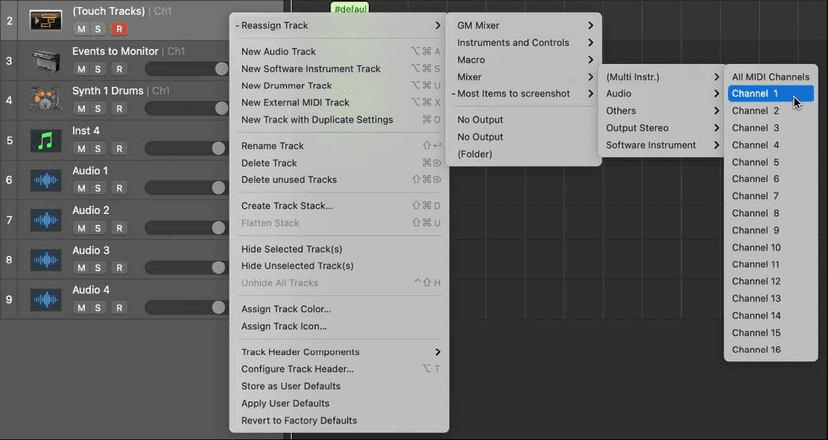
- Touch tracks - trigger whole MIDI regions or folders from a single note.
- Ornaments - solid backgrounds for grouping objects visually, with no function at all.
Layers
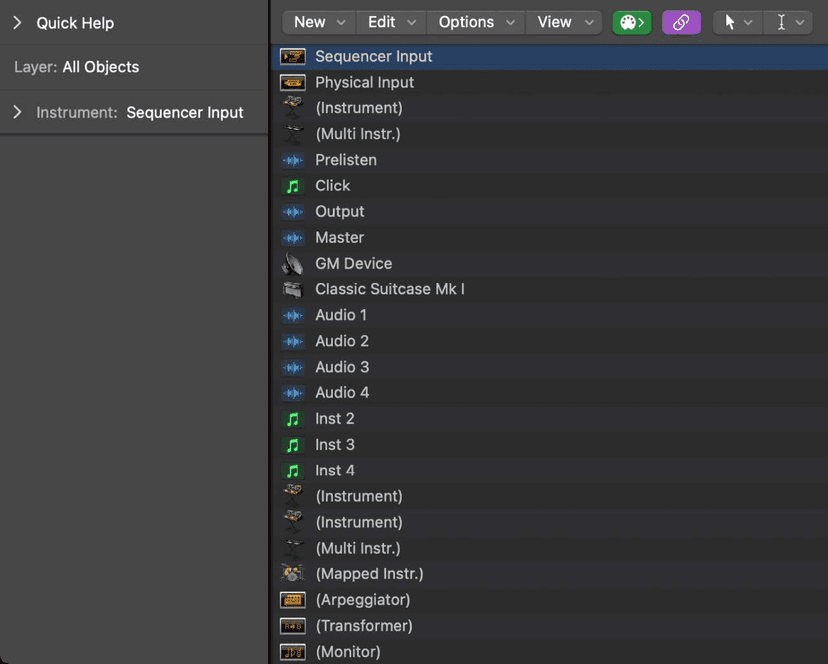
The Environment fills up fast, so objects are organised into layers - partial views of the whole thing. Which layer an object is on has no effect on how it works; it is purely organisation, and you can cable freely between layers.
Two layers are permanent and cannot be deleted:
- All Objects - everything, usually shown as a list. Options > Go to Layer of Object jumps to where a selected object really lives.
- Global Objects - anything placed here appears in every layer, at the same position. Use it sparingly or every layer becomes cluttered.
Cables and the signal path
Objects are wired with cables that carry MIDI. Data leaves one object, passes through whatever you have put in its path, and arrives somewhere changed. Insert an object into that path and everything flowing through it is affected - which is the entire idea.
The processing objects
These are the ones people actually build things with, and they are all created from the New menu in the Environment window.
Arpeggiator
Turns held chords into arpeggios, at speeds from whole notes down to 768th notes. Parameters for direction, velocity, resolution, note length, start quantize (Snap), repeats, octaves, and a velocity offset called Crescendo - and all of them can be MIDI controlled in real time, which is what makes it more than a novelty.
Directions:
- Up - lowest to highest. Down - highest to lowest.
- Up/Down - both, with the top and bottom notes repeating. Up/Down2 - both, without repeating them.
- Auto - up or down depending on whether the second note of the chord arrived before or after the first.
- Random - any order. All - every note at once, which is useful with Repeat on.
Assign it to a track and cable its output to an instrument. To record what it plays, cable it into the Sequencer Input object - and record onto an unassigned track, or break its connection to a MIDI output first, or you will get a loop. One quirk to expect: for technical reasons the arpeggiator resets on cycle jumps.
Delay line
Echoes the MIDI events passing through it - up to 99 repeats, at intervals from one tick to 256 whole notes. These are notes, not audio, so every repeat is still editable MIDI.
- Thru Original - off, and you hear only the echoes.
- Repeats - the number of them. Zero turns it off.
- Delay - the interval, in divisions and ticks.
- Transposition - each repeat transposed by a set amount, so the echoes climb or fall.
- Velocity - each repeat louder or quieter, which is how you make the tail decay.
The repeats are sent sequentially to each cabled output: event 1 to cable 1, event 2 to cable 2, and so on. Cable it to several different instruments and the echo walks around your rig.
Chord memorizer
Maps single notes to chords - one chord per pitch class. The octave you play determines the octave of the chord, and a chord can hold 0 to 12 notes.
- Key Limit - notes inside the range are mapped, notes outside pass through untouched. So you can have the bottom two octaves triggering chords and the rest of the keyboard playing normally.
- Transposition transposes the output chords; Key transposes the whole map.
- Cable Split sends each note of a triggered chord to a different output, so one key can play three instruments.
Double-click it to open the Chord Memorizer window - the top keyboard is the incoming note, the lower one the chord it produces.
The clever use is not chords at all: zero- and one-note chords make it a scale filter, silencing or correcting notes outside a key.
Voice limiter
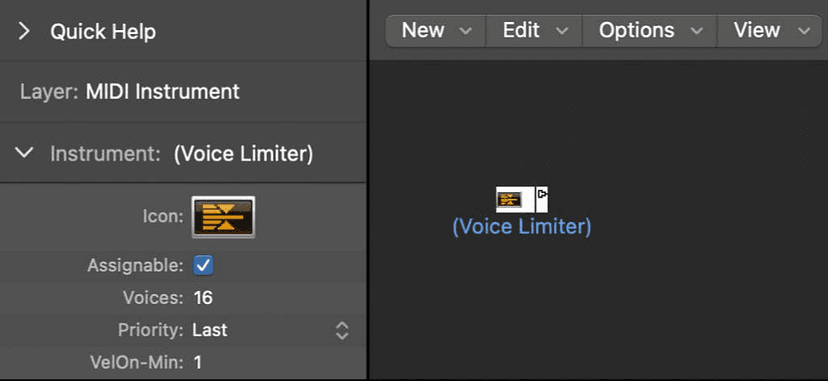
Caps how many notes can sound at once, from 1 to 32, by note stealing - new notes turn off currently held ones once the limit is reached. Useful for emulating the voice count of an old synth, and for stopping a sustained patch turning into mud.
Cable switcher and transformer
A cable switcher routes events rather than generating them; a meta event with Num 48 can switch which output it uses, which means the routing itself can be automated from a MIDI region.
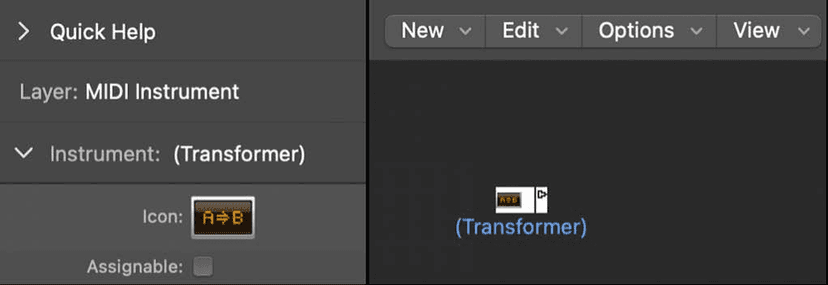
A transformer object is the real-time version of the MIDI Transform window - the same conditions-and-operations idea, applied to data as it passes through rather than to a region after the fact. It is what you reach for to remap one controller's drum layout onto another's, permanently and invisibly, while you play.
Driving it from the arrangement
Meta events in a MIDI region can operate Environment objects while the project plays: switch a cable switcher's output (48), change screenset (49), jump to a marker (51). Between those and a few faders, the Environment can be made to reconfigure itself as a song progresses.
If you go in
Work on a copy of the project. Environment edits are not always obvious to undo, and a mis-wired layer can stop MIDI reaching an instrument with no visible sign of why - the track looks normal, the meters do nothing, and there is no error anywhere.
Chasing exactly that kind of fault in an inherited project is, realistically, the most likely reason you will ever open this window.