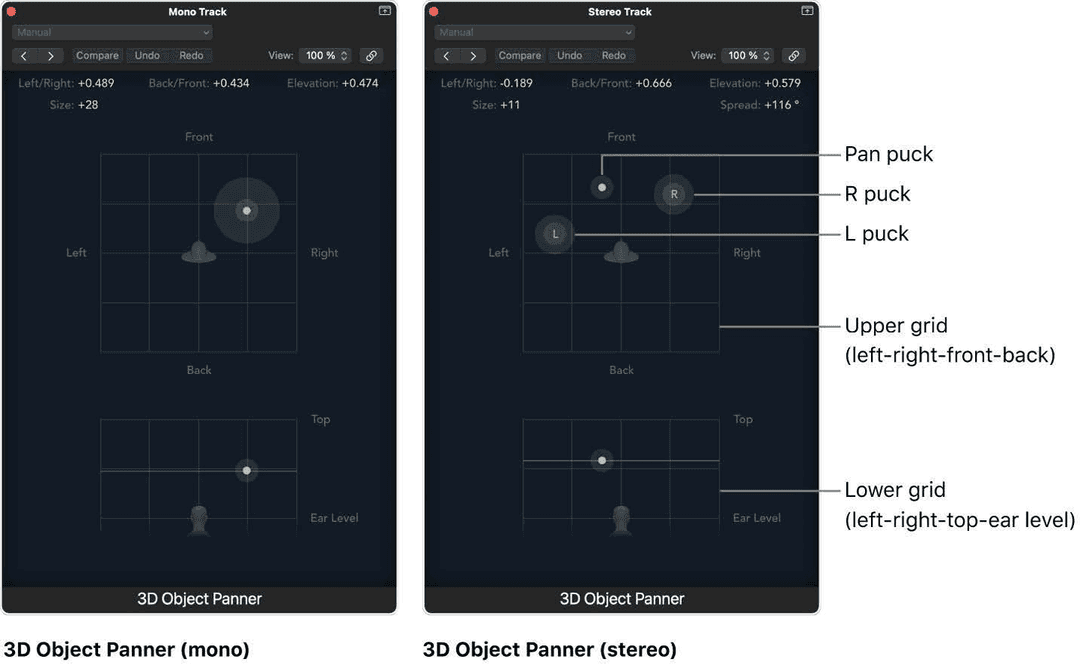
Stereo puts a sound somewhere on a line between two speakers. Dolby Atmos puts it anywhere in a room, including above your head - and Logic has the whole toolchain built in, from the panner to the master file a streaming service will accept.
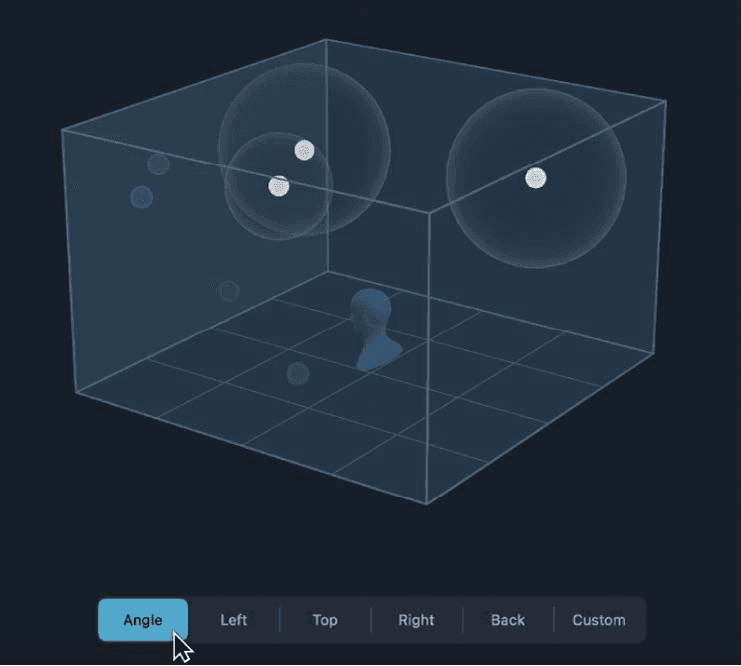
Worth learning because every major streaming service now takes Atmos masters, and it is something a mix engineer gets asked for rather than offered.
Channel-based vs object-based
Everything else depends on this distinction, so get it straight first.
- Channel-based - stereo, 5.1, 7.1. You route and pan tracks to a fixed set of output channels. A 5.1 mix is six channels, monitored on six speakers, bounced to a six-channel file. Playing it back properly needs that exact speaker layout.
- Object-based - Atmos. You do not route a track to output channels at all. Each object carries its position in a 3D space as data, stored separately from the audio, and the playback device renders it onto whatever speakers are actually in the room.
That rendering step is why an Atmos mix is speaker agnostic. No overhead speakers in the room and the height information folds down into the nearest surround channels rather than being lost. The same file works on a cinema rig, a soundbar and a pair of AirPods.
Three project formats
- Stereo - everything you already know. Two channels out.
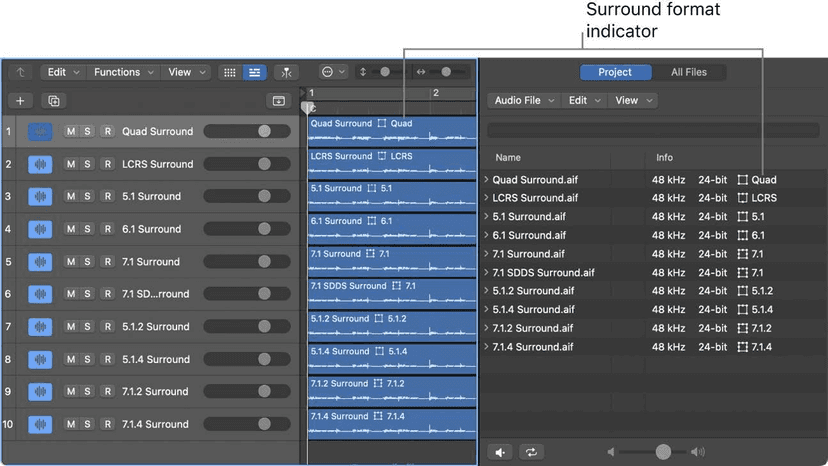
- Surround - a fixed multichannel format, set in the General Audio project settings. Monitored on a real surround rig, or on headphones through the Spatial Audio Monitoring plug-in.
- Spatial Audio with Dolby Atmos - the object-based one, and the rest of this chapter.
What changes in the Mixer
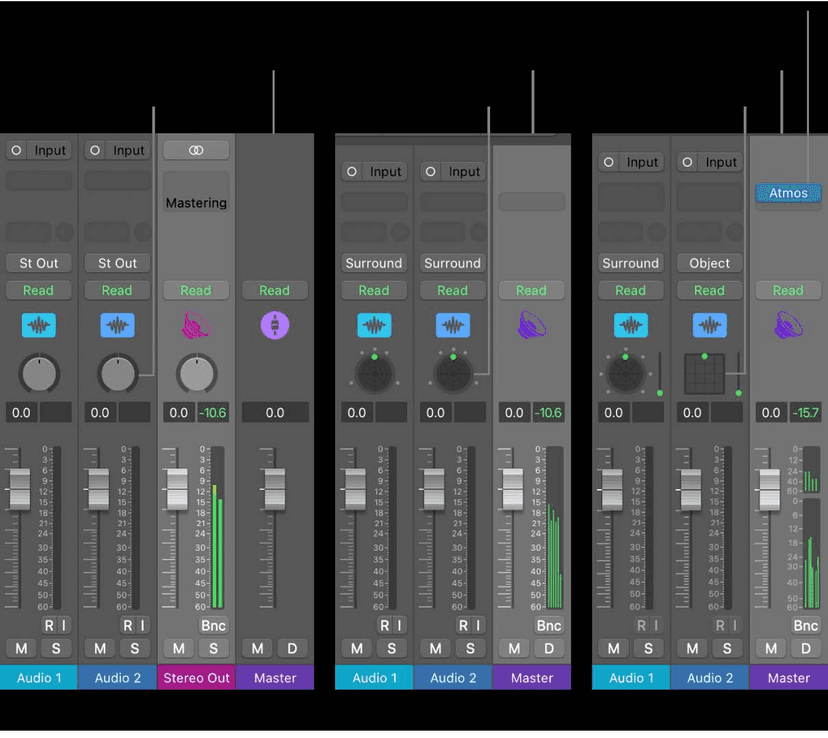
Open a surround or Atmos project and the Mixer is not quite the one you know:
- Pan controls - the stereo Pan knob is replaced by the Surround Panner on bed tracks, and the 3D Object Panner on object tracks.
- The output channel strip is hidden - the main output of a stereo project has nothing to do in a surround one.
- A surround master channel strip replaces the plain master, and it is where the Dolby Atmos plug-in lives.
Beds and objects
An Atmos project has two kinds of track, and you decide which each one is.
Bed tracks are routed and panned to a channel-based 7.1.2 surround bed using the Surround Panner, exactly like conventional surround tracks. This is where the glue goes - room mics, pads, reverb returns, anything whose job is to fill the space rather than come from a place.
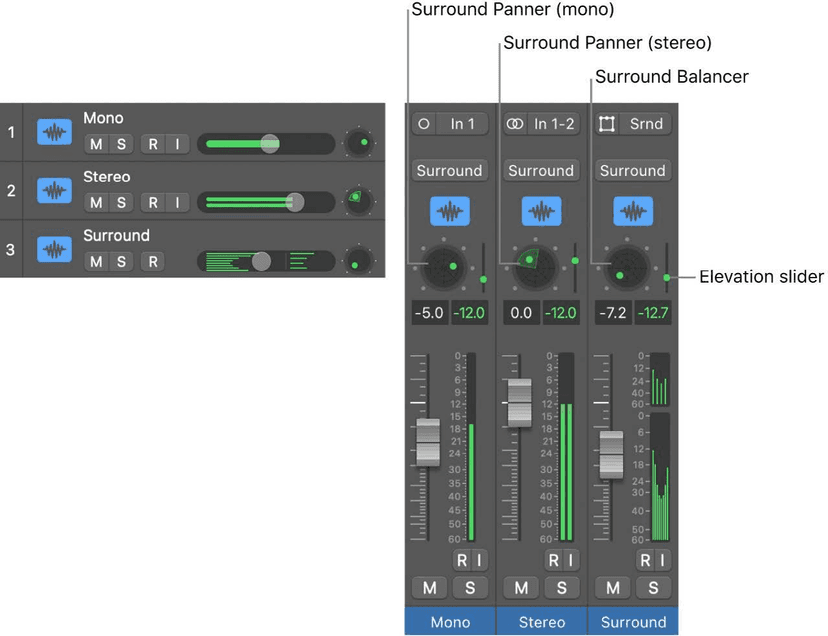
The Surround Panner appears in one of three forms depending on the channel's input format, and they have different parameters:
- Surround Panner (mono) - a mono track routed to a surround bus or output.
- Surround Panner (stereo) - a stereo source placed in the field.
- Surround Balancer - when the input is already surround, you balance it rather than pan it.
Open it in its own window rather than working in the channel strip - you can have several open at once and save them into a screenset, and with the Link button on, the window follows the selected channel strip.
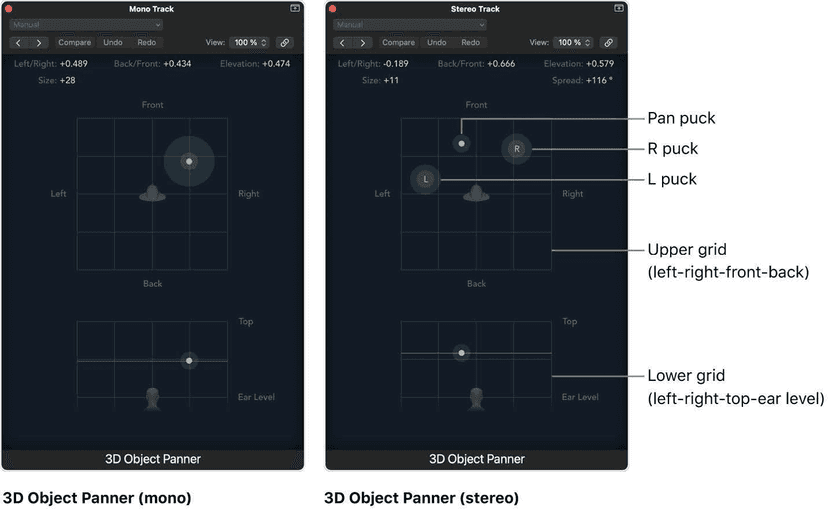
Object tracks are positioned freely in three-dimensional space with the 3D Object Panner. This is where the focal points go: lead vocal, a hook, anything that should come from somewhere specific, and anything you want to move.
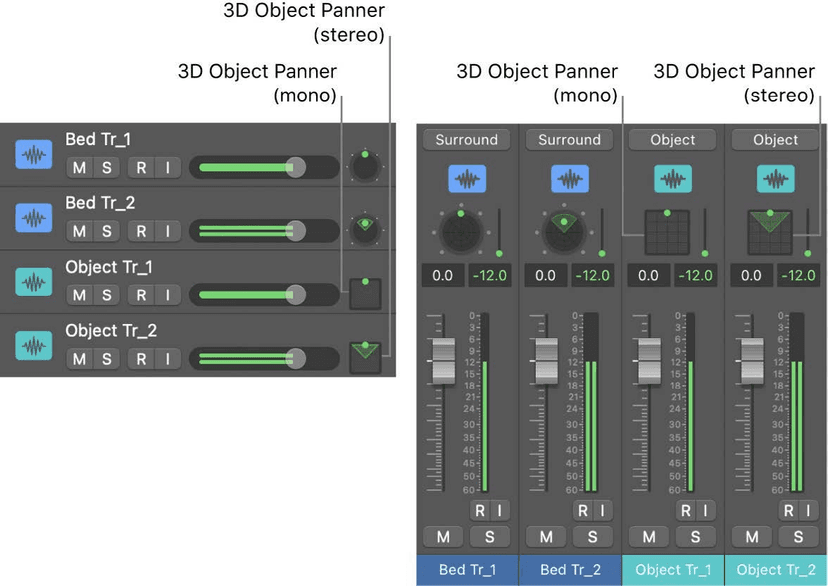
Two practical things about object tracks:
- Only mono and stereo tracks can be objects. A surround track cannot.
- Switching the panner switches the track type. Click the Output slot and choose 3D Object Panner, or Control-click the Surround Panner and choose it there. The Output slot changes from Surround to Object, and the pan control changes from a circle to a square - that square is the only visual sign that a track is an object.
The channel strip gains an Elevation slider for the vertical axis; the green puck handles the planar position as usual.
The Dolby Atmos plug-in
Choose Dolby Atmos from the Spatial Audio pop-up menu in the Audio project settings and Logic inserts this on the surround master automatically. You cannot add it from the plug-in menu - it is not in there. It renders the object-based mix down to channel-based output for monitoring, in real time, including every bit of position automation.
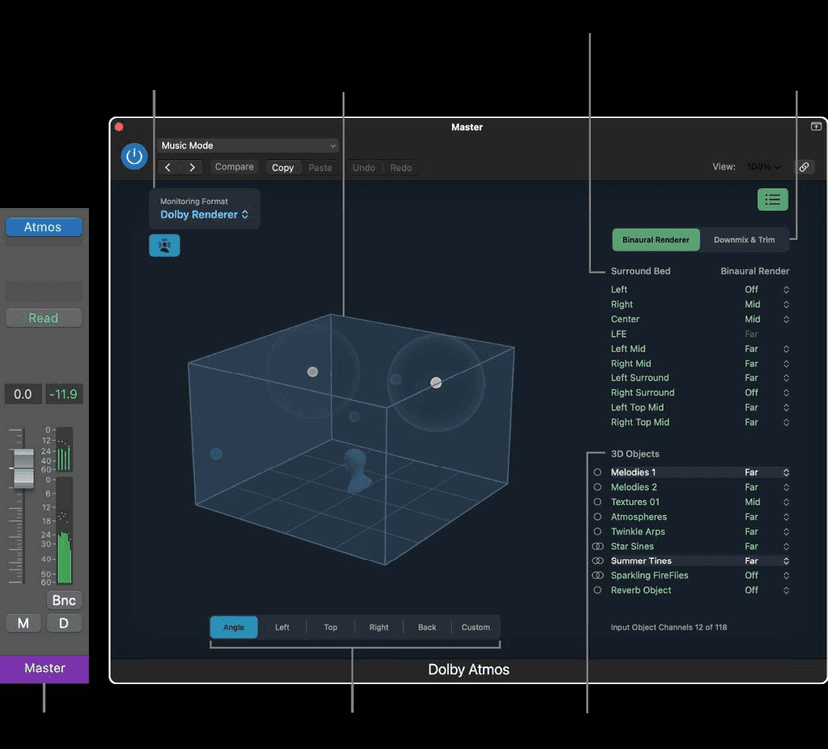
The window gives you:
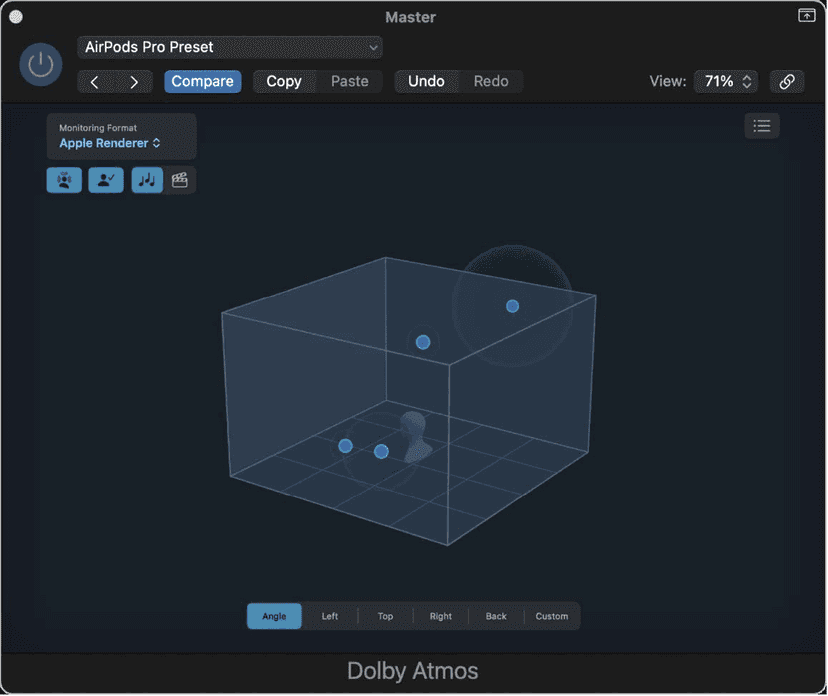
- Monitoring Format - different renderers, so you can check the mix in various speaker and binaural formats without changing the mix itself.
- 3D Object Viewer - the listening room with a virtual head at the centre. Each object is a sphere; a blue sphere means that track is currently playing. Select an object and its sphere turns white and stays visible even in silence, which is how you find the one you are looking for. Bed signals are not shown.
- The bed and object list - surround bed channels on one side, every object on the other, sorted in track order. A circle marks a mono object, a double circle a stereo one.
Two limits worth writing down: the plug-in runs at 48 kHz or 96 kHz only (Logic sample-rate converts in real time if your project is elsewhere), and a project has 118 objects available. The Input Object Channels field shows how many you have used - and a stereo object track counts as two.
Monitoring without a surround room
Spatial Audio Monitoring renders the mix binaurally over ordinary headphones, with optional head tracking, and works on built-in Mac speakers that support Spatial Audio. It needs macOS Monterey 12.3 or later.
Personalized Spatial Audio goes further, using a head-and-ear measurement profile made on a supported iPhone, which gets the imaging noticeably closer to right for your own head.
Neither is the same as a properly treated room with real height speakers, and you should not sign off a commercial Atmos master on headphones alone. But it is enough to work in, and enough to learn on, which is the point.
Effects in a multichannel world
Logic ships multichannel versions of many of its effects, and they insert on surround channel strips the way the stereo ones do. The thing to watch is what a plug-in does to the channels it is not expecting - anything with a stereo-width or mid-side stage needs checking in every monitoring format, not just the one you are listening in.
Delivering it
You do not bounce an Atmos mix the way you bounce a stereo one. There are two exports and they are for different people.
- ADM BWF master file - the real deliverable. One interleaved file carrying up to 118 object tracks plus the 10 channels of the 7.1.2 bed, with all the pan and configuration data alongside as metadata. This goes to the mastering engineer or the streaming service.
- MP4 for quality control - encoded as Dolby Digital Plus with Dolby Atmos, or as Dolby AC-4 L4. These simulate what a streaming service's own encoding does to your mix, which makes this the file you send a client for approval rather than the master.
For a plain surround project rather than Atmos, you bounce to a single interleaved file containing every channel, or choose Split to get one mono file per channel - Logic appends a channel identifier to each (.L, .R, .C, .LFE and so on).
It works in reverse too: File > Import > Create Project from ADM BWF opens somebody else's Atmos master as a Logic project, beds and objects intact, with the file's pan data applied as automation on the object tracks.
Where to start
Take a finished stereo mix you know inside out. Open it as an Atmos project, leave almost everything as a bed, and make three things objects - the lead vocal, one delay return, and something percussive. Move only those.
You will learn more in twenty minutes doing that than from any amount of reading about speaker layouts, and you will immediately hear the trap: things that sound spectacular flying around the room usually sound worse than things placed carefully and left alone.