Faders you can actually grab. Once you have ridden a vocal with a real fader, drawing the same move with a mouse feels like a downgrade - and Logic supports far more hardware, in far more depth, than most people ever find out.
Three ways Logic talks to hardware
- MIDI Device Profiles (MDPs) and Apple's control surface plug-ins - supported on every Mac. Many surfaces are recognised and configured the moment you connect them.
- Third-party control surface plug-ins - Intel Macs only. Check the manufacturer's documentation before buying a surface to use on Apple silicon.
- Lua scripts for USB MIDI controllers - the automatic-assignment route, and what most modern keyboard and desktop controllers use. Logic recognises these and shows them in the Control Surfaces Setup and Install windows on its own.
Adding a surface
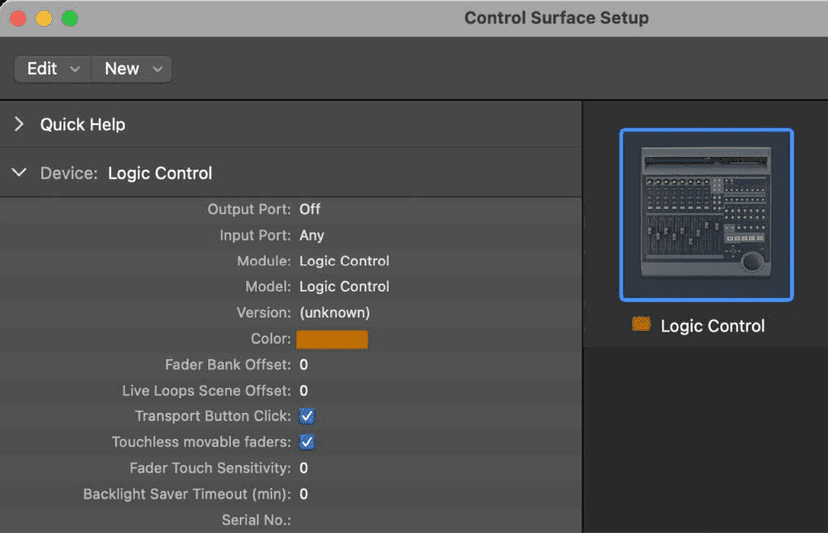
Some devices, Mackie Control among them, are detected when Logic opens. Everything else goes through Logic Pro > Control Surfaces > Setup.
By scanning - the preferred route:
- In the Setup window choose New > Install and select your device. Command-click to select several models.
- Click Scan. Logic searches your system, then installs and connects everything it finds.
New > Scan All searches every supported type on every port. It takes a few minutes and is the thing to try when you do not know what you have.
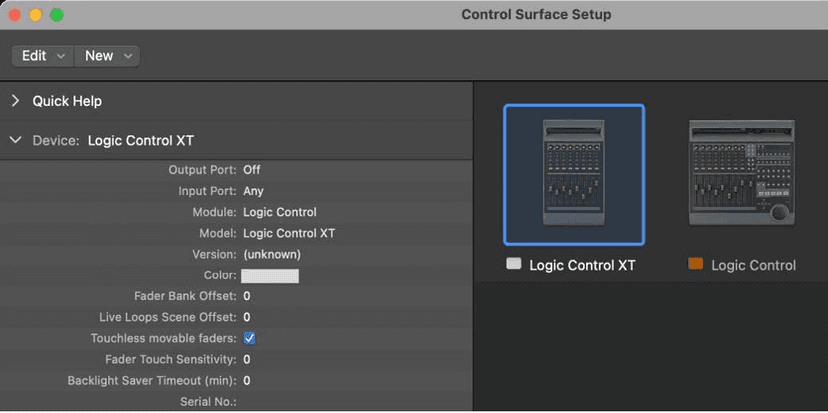
Manually - for devices that do not support scanning. Choose New > Install, select the device, click Add, then set the MIDI In and Out ports by hand in the device parameters. Scan whenever you can: Logic gathers more information about a device by scanning than it ever can from a manual install.
If surface support goes strange, Control Surfaces > Rebuild Defaults reinitialises every connected device.
The Controller Assignments window
Command-K. This is where anything can be mapped to anything, and it has two faces.
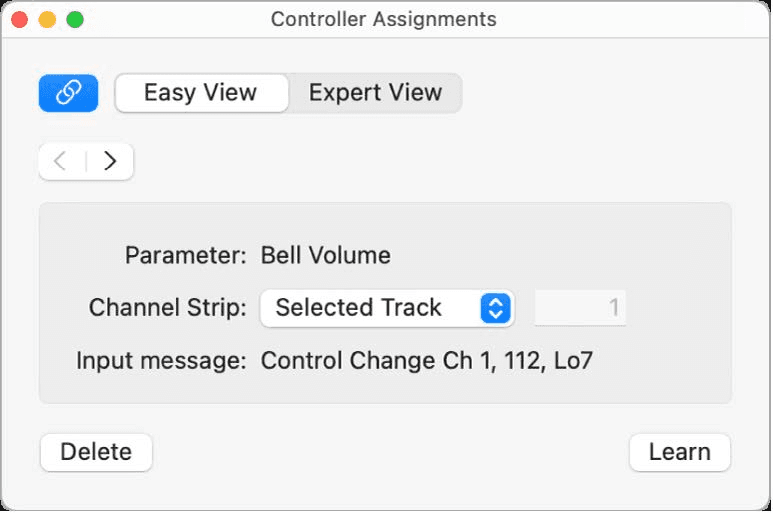
Easy view handles channel strip and plug-in parameters, one assignment at a time:
- Parameter - the name of what you are assigning.
- Channel Strip - whether the assignment follows the selected track, or is pinned to a specific channel strip number.
- Input message - the incoming MIDI data from the control, so you can see what the hardware is actually sending.
- Link - automatically selects the assignment matching the most recent MIDI message received, which is how you find an existing mapping by just touching the knob.
The Learn process
- Select a parameter in the Mixer or in any plug-in window.
- Choose Logic Pro > Control Surfaces > Learn Assignment for [parameter], or press Command-L.
- Move the hardware control. The MIDI message appears in the Input message field and the assignment is memorised.
- Click the Learn Mode button to finish - or leave it on and keep assigning.
Two refinements worth knowing:
- With a modifier key - hold Command (or Shift, Option, Control) while you select the parameter and move the control, and the assignment only fires with that modifier held. One knob, four jobs.
- A series at a time - there is a shortcut for assigning a row of faders to a row of volumes, or a bank of knobs to a set of plug-in parameters, without doing them one by one.
Expert view, zones and modes
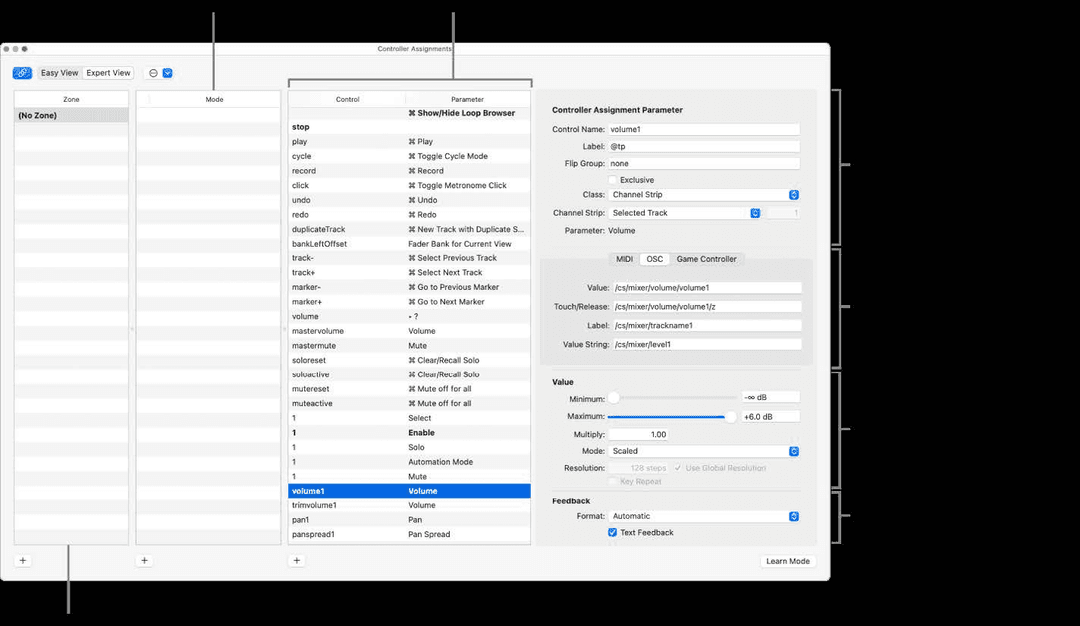
Expert view creates and edits every kind of assignment - global, automation, and control surface group assignments - and it is where zones and modes live.
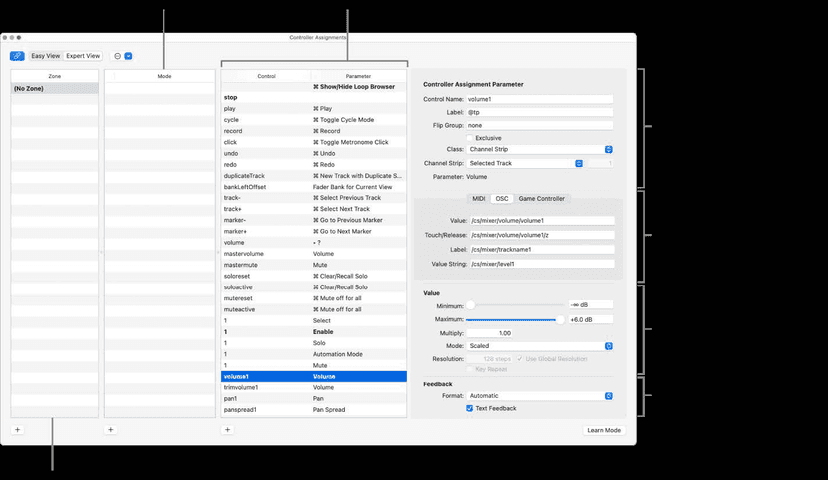
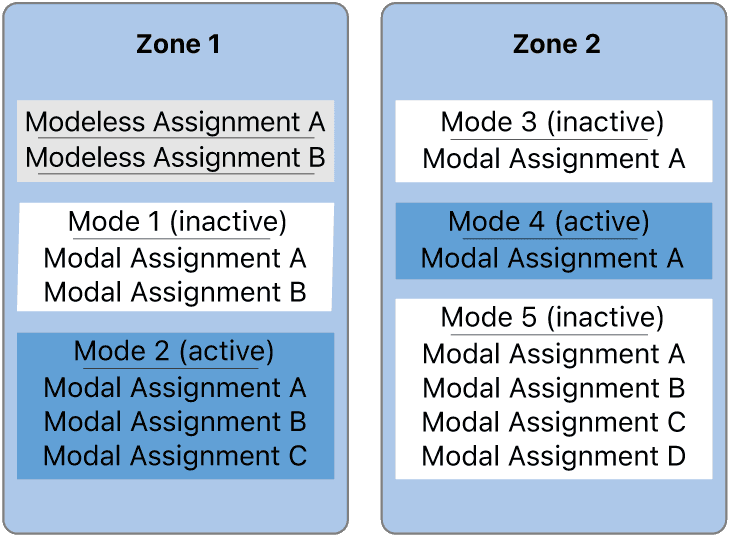
A zone is a group of controls. A mode is a set of assignments inside that zone, and only the active mode's assignments are processed - the others are ignored until you switch.
That is how one surface does several jobs. A zone can hold permanent assignments for transport, display, Save and Undo, plus a modal set for volume and pan. Switch modes and the same knobs become EQ controls, while transport and Save carry on working. Zones and modes can span several surfaces, which is what control surface groups are for.
Define one with the Add button under the Zone list in Expert view, then name it and add controllers.
Where the settings live
All controller assignments and Control Surfaces settings are stored in ~/Library/Preferences/com.apple.logic.pro.cs, written automatically when you quit Logic. You never save them by hand - but that file is what to back up before rebuilding a machine, and what to remove when assignments have gone irretrievably strange.
Check Smart Controls first
Before you build anything in Controller Assignments, look at whether a Smart Control already does the job. Smart Controls expose the handful of parameters that actually matter for a patch, map to a controller automatically, and automate like anything else. They are already wired up, and they follow the patch rather than the channel.
They also handle articulation IDs, which is how a screen control switches a sampled instrument between arco, pizzicato and so on - worth knowing if you work with orchestral libraries.
What this is actually for
Not the transport buttons. Riding a vocal or a reverb send with a fader, in one pass, while listening in context, gets you a move you will not draw in afterwards - because you are reacting to the music rather than looking at a curve. That is the whole reason to own one.