Introduction to Audio Effects in Logic
Logic Pro X provides an extensive suite of software effect plug-ins that can be used in your productions. Effects categories include both insert effects and processors that are principally designed for mastering use. Because you’re free to use almost all plug-ins as you see fit, there are few restrictions on the use of effects anywhere in the signal path.
Most effects can be used in mono, stereo, dual mono, or surround channels. Logic Pro X also provides a number of dedicated surround plug-ins.
Effects categories cover essential studio processors, such as compression, gating, limiting, equalization, and metering utilities. Both vintage and modern style compressors are emulated, making it easy to attain the sonic characteristics you need.
EQ options are extensive. The Linear Phase EQ is perfect for sculpting your primary vocal and instrument parts. Match EQ analyzes existing audio and allows you to impose an analyzed sonic “fingerprint” on other audio parts. The vintage EQ collection delivers emulations of three classic analog EQ units known for their distinctive sonic coloration.
A comprehensive collection of reverb, delay, and modulation effects is available to enhance your productions. Among these are the unique ChromaVerb, and the sophisticated and highly configurable Delay Designer and Space Designer plug-ins. Delay Designer lets you create precise, complex, rhythmic delays. Space Designer is a convolution reverb that uses recordings of real-world spaces, such as concert halls and canyons that you can impose on your audio, effectively placing your instrument or vocal in the space.
Modulation processors include phasing, flanging, ring modulation, vintage rotary speaker emulation, and rich chorus effects.
If you’re a guitarist or are using the classic B3 organ, Rhodes, Clavinet, or Mellotron emulations provided by the included vintage instruments, you can choose from a vast collection of retro and modern effect pedals and amplifier simulations.
A number of powerful Distortion and Filter effects further expand your options. The filters include vocoder-like utilities and the Spectral Gate plug-in that offer control over the formant and spectral characteristics of your sounds.
Adding a further string to your bow are the flexible, powerful, and fun multi effects units that combine a collection of processors and modulators in one place. These are ideal for use with urban and dance floor-oriented tracks, but can truly transform any sound you want to run through them.
You can manipulate pitch with the Pitch Correction, Pitch Shifter and Vocal Transformer effects. These can be used for subtle corrections or for heavy Cher-like processing of vocals and instruments.
Rounding out the collection are spatial and frequency enhancement plug-ins, and useful studio utilities such as a test oscillator.
Let's start by looking at some of the 'all in one' units that can be great gateway to get into the world of using Audio FX.
Note: Audio FX can be used on Audio, Software Instrument and Drummer tracks, as well as Auxillary tracks!
Multi Effects
The Multi effects units provide a one-stop shop solution for a number of musical situations where you need to highlight or enhance a musical part or song section. While the included multi effects processors can be used subtly or traditionally, they are truly creative tools that excel at transformative changes to your music.
- Phat FX is a “coloring” multi-effect unit designed primarily for use with drum, bass, and guitar parts. It can add warmth, punch and presence, along with some heavy distortion if you need it. You can use it with any type of signal that you feel is in need of some extra “flavor.”
- Step FX is a multi-effect unit that provides deep modulation control, courtesy of three independent built-in 128-step modulators. It can be used with any type of signal and is capable of subtle or heavy rhythmic enhancements to musical parts, dance-floor gating effects, and warped manipulations that can turn your audio and instrument tracks into something completely new.
- Remix FX is a flexible multi-effect unit that combines several DJ-style effects such as a filter, gater, downsampler, reverse, scratch, tape stop, and more. It is designed primarily for use on the stereo bus to give electronic style music a live dance floor groove, but you can use it on any type of signal.
Phat FX
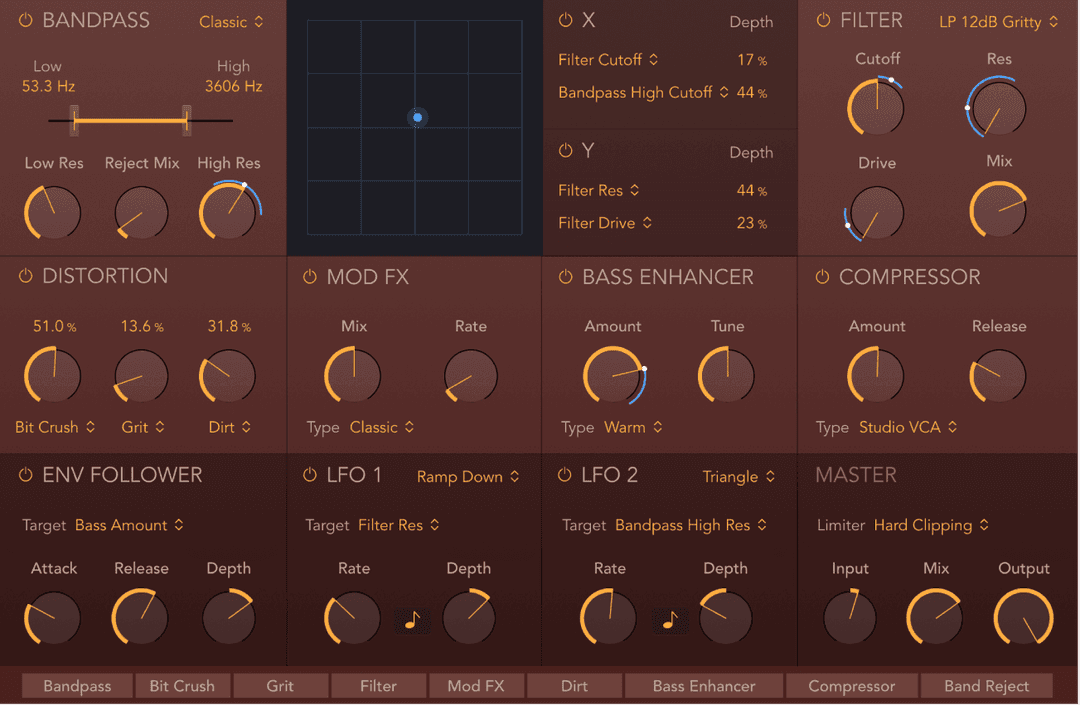
Phat FX is a powerful “coloring” multi-effect designed primarily for use with drum, bass, and guitar parts, adding warmth, punch and presence where required. It can, of course, be used with any type of signal. Phat FX combines several effect processors, filters, and modulators in a flexible tool that can be used to quickly enhance your projects.
Three distortion units are included, which can be used separately or blended together to create an endless variety of tones.
The bass enhancer and bandpass filter circuits can be used to enhance low end frequencies, making for great kick drum and bass guitar sweetening.
In addition, an easy-to-use multi-modeled compressor, a multimode resonant filter, and a modulation effect unit are included.
Two LFOs and an envelope follower, coupled with the assignable XY pad allow powerful automatic and real-time manipulation of the most important parameters.
Phat FX processors work in series—where the output of one effect is fed into the next in an effects chain. The routing order lets you choose whether a distorted signal should be filtered or the filtered sound should be distorted, for example.
Horizontally drag the name of the effect in the Effects order strip at the bottom of the window to determine the order of the effects chain.
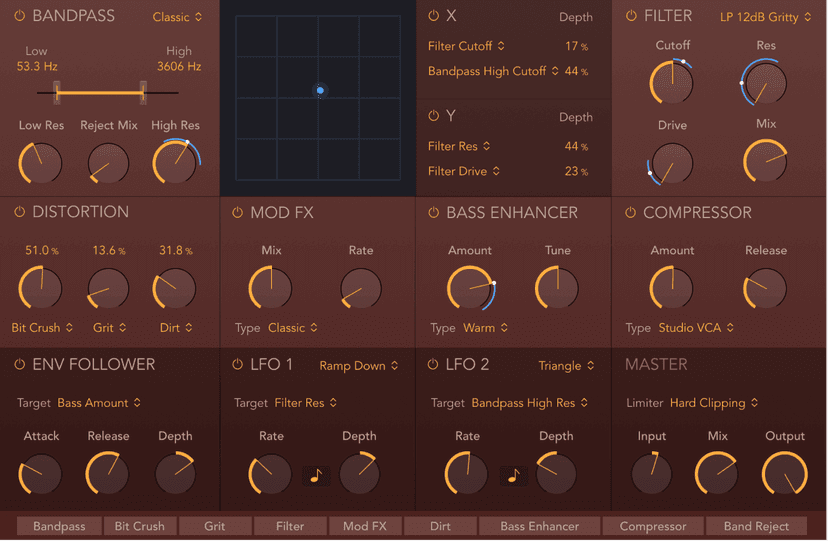
The XY pad provides real-time control of up to four target parameters. Drag the blue control point to simultaneously modulate your targets. The parameters of the XY pad and the Master controls are described in the respective sections below.
XY pad parameters
Changes to XY pad Target pop-up menus are reflected by blue rings and dots around target parameter knobs, which make it easy to identify a target parameter. The rings indicate the modulation range and the dots indicate the current value of the XY pad modulation.
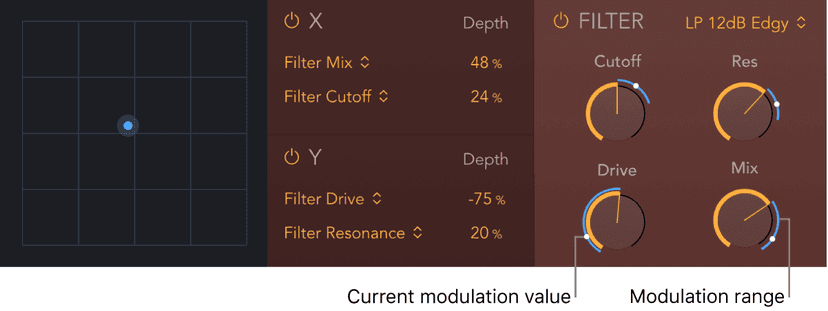
- XY pad: Drag horizontally or vertically to change the value of the assigned X or Y target parameters.
- On/off buttons: Enable/disable the X or Y controller.
- X Target pop-up menus: Choose one or two modulation targets from any active effect processor, modulation source, or master control section.
- X Depth fields: Set the modulation amount/range for the chosen X target(s).
- Y Target pop-up menus: Choose one or two modulation targets from any active effect processor, modulation source, or master control section.
- Y Depth fields: Set the modulation amount/range for the chosen Y target(s).
Master controls
- Limiter pop-up menu: Choose soft or hard limiting, or turn off limiting.
- Input knob and field: Set the overall input level of the plug-in.
- Mix knob and field: Set the level of the original versus processed signal. This is essentially a wet/dry balance control.
- Output knob and field: Set the overall output level of the plug-in.
Effects order strip
The order and status of active and inactive effects units are indicated in the strip. Inactive effects are dimmed, and active effects are illuminated. The signal flow runs from left to right.

Effects order strip: Drag the name of an active (lit) or inactive (dimmed) effect horizontally to change the effects order.
Step FX
Step FX is a powerful multi-effect unit that provides deep modulation control, courtesy of three independent step modulators. It can be used with any type of signal and is capable of subtle or heavy rhythmic enhancements of musical parts, dance floor gating effects, and warped manipulations that can turn your audio and instrument tracks into something completely new.
The three independent step modulators—each with an envelope—provide up to 128 steps that can be used to control effects parameters, gate, and pan. Multiple step modulators can be used to control the same parameter, allowing for interesting polyrhythms. Control is further enhanced with the assignable XY pad that enables real time manipulation of up to four parameters.
Effects include a multimode filter, a modulation FX unit, delay, reverb, and distortion units. All effects parameters can be modulated.
Step FX processors work in series—where the output of one effect is fed into the next in an effects chain. The routing order lets you choose whether a delayed signal should be filtered or the filtered sound should be delayed—as an example.
Horizontally drag the name of the effect in the Effects order strip at the bottom of the window to determine the order of the effects chain.
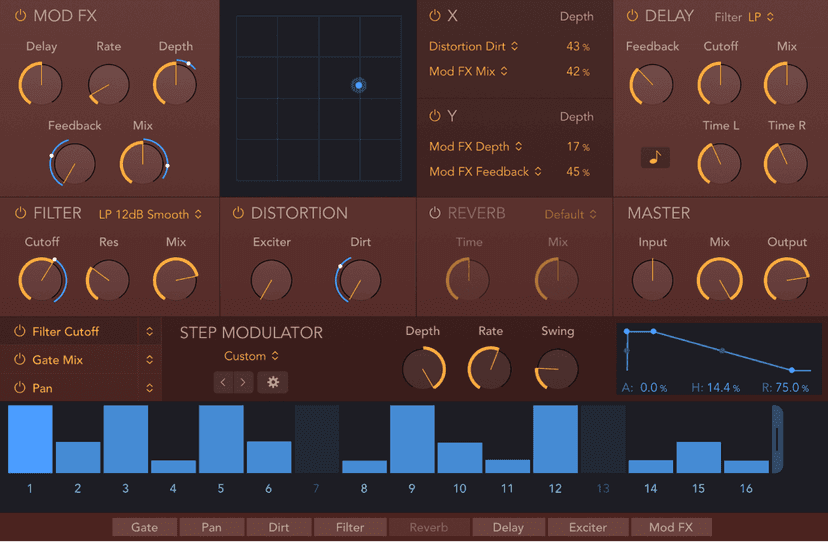
The XY pad provides real-time control of up to four target parameters. Drag the blue control point to simultaneously modulate your targets. The parameters of the XY pad and the Master controls are described in the respective sections below.
XY pad parameters
Changes to XY pad Target pop-up menus are reflected by blue rings and dots around target parameter knobs, which make it easy to identify a target parameter. The rings indicate the modulation range and the dots indicate the current value of the XY pad modulation.
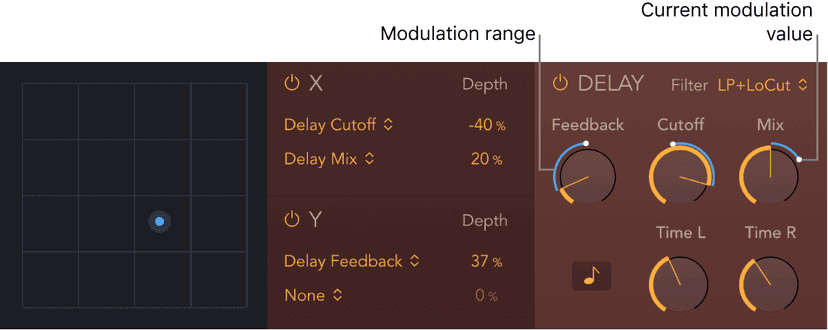
- XY pad: Drag horizontally or vertically to change the value of the assigned X or Y target parameters.
- On/off buttons: Enable/disable the X or Y controller.
- X Target pop-up menus: Choose one or two modulation targets from any active effect processor, modulation source, or master control section.
- X Depth fields: Set the modulation amount/range for the chosen X target(s).
- Y Target pop-up menus: Choose one or two modulation targets from any active effect processor, modulation source, or master control section.
- Y Depth fields: Set the modulation amount/range for the chosen Y target(s).
Master controls
- Input knob and field: Set the input level of the plug-in.
- Mix knob and field: Set the level of the original versus processed signal. This is essentially a wet/dry balance control.
- Output knob and field: Set the overall output level of the plug-in.
Effects order strip
The order and status of active and inactive effects units are indicated in the strip. Inactive effects are dimmed, and active effects are illuminated. The signal flow runs from left to right.

Effects order strip: Drag the name of an active (lit) or inactive (dimmed) effect horizontally to change the effects order.
Step modulator display controls
These parameters are available for each of the three step modulators. Click the name in the Modulator Target pop-up menu to choose the modulator you want to edit. The selected modulator name is shaded.
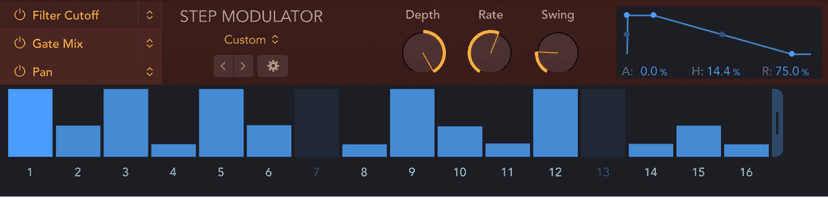
Step modulator pattern display controls
- Pattern display: Use to change the modulation pattern length, edit the level and length of individual steps, tie steps, and enable or disable steps.
- Level/length bars: Drag vertically to set the level/amount for each active step. Drag left to reduce step length. Drag right to increase step length or to create a tie to the next step. The currently playing step is brightly illuminated.
- Where multiple level/length bars exist, drag across them to draw in the level of several steps.
- Drag a level/length bar toward the left to reduce the step length. Drag to the right to increase the step length. This enables you to create different grooves. Dragging snaps to fixed positions at 25%, 50%, 75%, or 100% of the step length. Hold down Shift, then drag to set the step length freely. Edits are reflected immediately in the display with a shaded bar that indicates the step length.
- Drag a level/length bar toward the right until it overlaps the next step to create a tie to that step. If the step to the right is a rest (an inactive step), this step is automatically turned on to create the tie. A step can be tied to multiple steps in a row. The original velocity values of tied steps are replaced by the velocity of the first step they are tied to, indicated graphically by the level bar extending over all tied steps. Edits are reflected immediately in the display with a shaded bar that indicates the tie length.Tied steps are indicated by blue dots, connected by lines, on the step number buttons below the steps. To remove or create a tie, click the line between two dots.
- Pattern length handle: Drag the handle to the right of the last step to change the modulation pattern length. A maximum of 128 steps is available for each modulator. Each modulation pattern can have a different length.
- Step number buttons: Click to turn each of the available steps on or off. The number of inactive steps (and level/length) is dimmed. Active steps (and level/length) are illuminated. You can drag horizontally across multiple steps to reverse their current state. Any existing step length or level is restored if an inactive step is turned on. Click between step numbers to create or remove a tie. Tied steps are indicated by blue dots, connected by lines.
- If a step is turned on: A step is triggered at the respective modulator position.
- If a step is turned off: The modulator position is silent and is perceived as a rest.
- Scroll bar: Drag to move to steps that are not visible in the display.
Step modulator global controls
The Step Modulator is the heart of Step FX. It offers three independent step modulators that each provide up to 128 steps. Each modulator can be assigned to modulate effects unit parameters or to modulate gate or pan. It is also possible to assign multiple step modulators to the same parameter to create interesting polyrhythmic effects.
In addition to defining the number of steps in each modulator, you can change the level and length (gate time) of individual steps, and you can also tie steps. Each modulator provides independent Depth, Rate, and Swing amount controls, and also features an Attack, Hold, and Release envelope that defines the overall step shape for each modulator.
A number of modulator pattern presets are included, along with menu commands to help you quickly create new and interesting rhythmic modulation patterns.
Step modulator global controls
- On/off buttons: Enable/disable step modulator 1, 2, or 3.
- Step Modulator select buttons: Click to select step modulator 1, 2, or 3. All parameters in the step modulator, envelope, and so on, update to show values for the chosen modulator.
- Modulator Target pop-up menus: Choose a target parameter for step modulator 1, 2, or 3. These pop-up menus also act as select buttons. The selected modulator name is shaded.It is possible to assign the same target for multiple modulators. Because each modulator can have a different pattern and length, along with independent Depth, Rate, Swing, and envelope control, this can lead to complex polyrhythmic modulations. There are two gate modes available that facilitate different playback behaviors:
- Gate Mix: Gate Mix is the best Gate choice in most cases. In this mode, a Depth value of 0% results in no change to the sound. As the Depth value increases, the volume associated with the minimum step value decreases until at 100% it results in silence. Negative Depth values invert step values. When multiple Gate modulators are used, the Gate Mix value is multiplied by existing Gate values.
- Gate Add: In Gate Add mode, a single Gate Add step modulator with a Depth value of 0% results in silence, and a Depth value of 100% sounds identical to Gate Mix. As you increase the Depth value, the amplitude of existing steps increases. Negative Depth values invert step values. When multiple Gate modulators are used, the Gate Add value is added to existing Gate values. For example, a Gate Add Depth value of +10 changes a step value of 50 to 60.
- Preset pop-up menu: Choose a menu item to save or load your own modulation pattern or to load a factory modulation pattern.
- Save As: Opens a name field. Enter a name, then click the Save button to save your modulation pattern. Click Cancel to stop the save operation and to exit the Save name field.User patterns are shown at the bottom of the Preset pop-up menu.
- Recall Default: Initializes all steps and the envelope in the current user pattern to default (null) values.
- Copy/Paste: Store the current modulation pattern in the Clipboard. Paste applies the modulation pattern currently found on the Clipboard.
- Delete User Preset: Deletes the current user pattern.
- Custom: This menu item is shown automatically when any pattern changes have been made. It can be considered the “current state” pattern preset.
- Previous/Next buttons: Click the left or right arrow to choose the previous/next modulation pattern preset.
- Action pop-up menu: Choose a modulation pattern handling menu item. These include randomize, shift, reverse, and other functions.
- Random Full: Apply full-range random offsets to modulation pattern step values. Use this command to create truly random modulation patterns.
- Random Deviation: Apply limited-range random offsets to modulation pattern step values. Use this command to create slight variations of existing step values.
- Shift Left/Right: Move all modulation pattern steps one position (a step) to the left or right. Steps at the first and last position “wrap around,” so step 16 would become step 1 if you used the Shift Right command on a 16-step modulation pattern.
- Double Note Length: Doubles the length of all steps. Full-length steps are tied to the next step. Steps of 25% length become 50% length steps, 50% length steps become 100% length steps, and so on.
- Reverse: Reverse the position of all steps. Step 1 becomes step 16, step 2 becomes step 15, step 3 becomes step 14, and so on in a 16-step modulation pattern.
- Invert: Invert the level of all steps. A step with a level of 40% becomes a step with a level of 60%, a step with a level of 10% becomes a step with a level of 90%, a step with a level of 0% becomes a step with a level of 100%, and so on.
- Append Duplicate: Duplicate all active steps and copy them to the step immediately following the last step. For example, steps 1 to 10 would be copied to create a 20-step modulation pattern.
- Append Reverse Duplicate: Duplicate all active steps, reverse their order, then copy them to the step immediately following the last step. For example, steps 1 to 4 with values of 15, 20, 30, and 70 would be copied to create an 8-step modulation pattern with values of 15, 20, 30, 70, 70, 30, 20, and 15.
- Step modulator playback controls
These parameters are independently available for each of the three step modulators. Click the name in the Modulator Target pop-up menu to choose the modulator you want to edit. The selected modulator name is shaded.
Also see the sections on Step FX modulator global controls and display controls.
Step modulator playback controls
- Depth knob and field: Set the intensity of modulation for step modulator 1, 2, or 3.
- Rate knob and field: Set the speed of step modulator 1, 2, or 3.
- Swing knob and field: Set the swing amount for step modulator 1, 2, or 3. Values over 0% increase the duration of odd-numbered steps (1, 3, 5, and so on) while decreasing even-numbered step lengths.
- Envelope display: Set an independent envelope shape for each step modulator. Values are expressed as a percentage of step length and apply to all steps in the selected modulation pattern. You can drag dots directly in the display or can drag field values.
- Attack dot or field: Set the envelope attack time for step modulator 1, 2, or 3.
- Attack curve dot: Drag the shaded dot shown on the line preceding the bright Attack dot to set the attack curve shape.
- Hold dot or field: Set the envelope hold time for step modulator 1, 2, or 3.
- Release dot or field: Set the envelope release time for step modulator 1, 2, or 3.
- Release curve dot: Drag the shaded dot shown on the line between the bright Hold and Release dots to set the release curve shape.
Remix FX
Remix FX includes a set of buttons, sliders, and XY pads you can use to control several real-time effects common to electronic and dance music. It makes it easy to scratch mix your project, much like a DJ using a turntable, to play audio in reverse, to stop or downsample the song, and to apply a variety of other effects. It is intended mainly for use on the stereo output bus, but you can insert the plug-in on any type of signal in your project.
Remix FX can be fully automated so you can record, edit, and play back any movement of the Remix FX parameters as automation.
You can also control the XY pads and other parameters with MIDI controllers, assigned with Smart Controls.
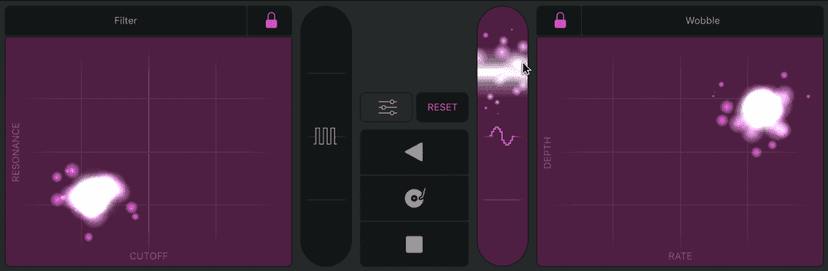
Use the XY pads on the left and right to control various time-based and modulation effects. Drag the pointer horizontally (X axis) or vertically (Y axis) to set the value of the parameter shown on the bottom or left side of each pad.
XY pad pop-up menus: Clicking the name of the effect at the top of the XY pad opens a pop-up menu. Choose an effect type for either the left or right XY Pad.
- Filter: Removes frequencies above a cutoff frequency and accentuates frequencies around the resonance value. X sets the cutoff frequency and Y sets the resonance value. Click the Settings button to access the following additional parameter:Mode: Choose between Phat, a warm-sounding filter with a 24 dB lowpass and 24 dB highpass filter, and Classic, a clean, state-variable filter with a slope of 12 dB/octave.
- Wobble: Modulates the audio signal through a vintage-style filter effect. X sets the modulation rate and Y sets the modulation depth. Click the Settings button to access the following additional parameter:Time: Select from options for note division, note division with an added triplet, or a triplet of the note division.
- Orbit: Modulates the audio signal through a flanger effect, phaser effect, or a mix of both. X sets the modulation rate and Y sets the modulation depth. Click the Settings button to access the following additional parameter:Mode:Choose between a phaser effect, a modulation effect that is a mix of both a phaser and flanger, or a flanger effect.
- Repeater: Creates a stuttering effect. X sets the repeat rate and Y sets the mix amount. Click the Settings button to access the following additional parameter:Time: Select from options for note division, note division with an added triplet, or a triplet of the note division.
- Reverb: Adds ambience to your audio signal. X sets the reverb time and Y sets the mix amount. Click the Settings button to access the following additional parameter:Color: Choose the character for the reverb. Dark rolls off the higher frequencies. Medium offers a relatively neutral ambience. Bright rolls off the lower frequencies.
- Delay: Adds echoes to your audio signal. X sets the modulation rate and Y sets the feedback depth. Click the Settings button to access the following additional parameter:Time: Select from options for note division, note division with an added triplet, or a triplet of the note division.
Remix FX parameters
- FX Lock button: Freezes the effect at the current X/Y values when the pointer is removed from the pad. When an XY pad is locked, you can then choose a different XY effect for the same pad and use it in combination with the locked effect. You can’t choose the same effect for both XY Pads.
- Reset button: Immediately halts all XY pad effects and disables XY pad locks, if active.
- Gater slider: Applies a gate-style effect on the incoming signal. Click the Settings button to access the following additional parameters:Gater: Select from options for note division, note division with an added triplet, or a triplet of the note division.Noise: Injects a small amount of soft, noninvasive noise into your signal, so that even without any audio signal you can still hear some gating.
- Downsampler slider: Changes the resolution of incoming audio, making the sound thinner, gritty, or peaky, similar to Bitcrusher distortion. Click the Settings button to access the following additional parameter:Downsampler:Extreme introduces a sympathetic, ringing frequency to your audio signal. Classic downsamples the audio to “roughen it up.”
- Reverse button: Reverses playback of incoming audio. Touch-sensitive effect variations are available on the left and right sides of the button. Click the Settings button to access the following additional parameter:Time: Select a note division for the reverse effect.
- Scratch button: Simulates a record scratch on the incoming audio. Touch-sensitive effect variations are available on the left and right sides. Click the Settings button to access the following additional parameter:Time: Select a note division for the scratch effect.
- Tape Stop button: Simulates the slow down and stop of the incoming audio. Touch-sensitive effect variations are available on the left and right sides of the button. Click the Settings button to access the following additional parameter:Time: Select a note division for the tape stop effect.
- Settings button: Shows additional effect parameters for the currently selected effect.
Do this now
- Put Phat FX on a drum loop and work through the presets until one is wrong in an interesting way.
- Rebuild it from scratch: choose the effects, set their order on the strip, and map the macros.
- Do the same with Step FX and let the step modulator move one parameter.
These two are complete effect chains. Learning them is faster than learning nine separate plug-ins.