Auditioning Wavetables Using an Envelope, LFO & The Modulation Matrix
Auditioning wavetables using an envelope is a particularly useful technique when working with wavetable synthesis, as it allows you to explore the full range of waveforms in a wavetable.
Here’s how:
- Select a wavetable that you want to explore
- Set up an envelope in the Modulation Matrix by moving the position slider: this will immediately create an entry for Osc 1 Pos
- Use envelope 2 as envelope 1 is by default always control volume. Place the position slider to 0 as a starting point of the mod envelope
- Set the modulation amount to 100 so that it covers the entire content of the wavetable.
- Adjust the envelope’s ADSR to control the speed and depth of the scanning.
- Trigger the envelope to start scanning through the wavetable. You can do this manually by pressing a key on your MIDI controller, or use an arpeggiator or sequencer to trigger the envelope automatically.
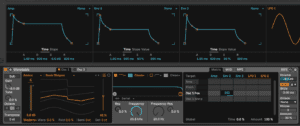
As the envelope scans through the wavetable, you will hear the different timbres and textures that are available. By adjusting the envelope parameters, you can create a range of different scanning patterns and explore the full potential of the wavetable.
You can also use an LFO (Low-Frequency Oscillator) to modulate the playback position within the wavetable in cyclical way and this can also be synced to the BPM of your song.
Using an LFO to modulate the playback position is also a great way to audition the contents of a wavetable.
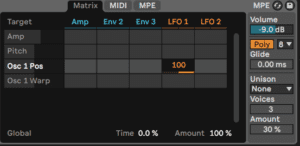
- Load a wavetable into your synth or sampler.
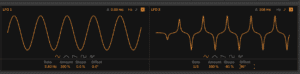
- Set the LFO to a frequency or a note value to scan in a rhythmic, quantized way.
- Set the LFO to modulate the playback position of the wavetable. This can been done by assigning the LFO to a “WT Pos” or “Position” parameter. To cover all the waveforms set the position slider to 50%.
- Play a note on your MIDI controller.
- As the LFO modulates the playback position, it will cycle through different waveforms of the wavetable.
- Try adjusting Shape to gradually change the waveform, Offset to choose a different start point (phase) or use A to fade in the modulation.
The Modulation Matrix is a powerful tool for assigning modulators as it will only show the destinations that we’re actually planning to modulate.
Wavetable’s Modulation Matrix uses some innovative ways to connect parameters to modulators:
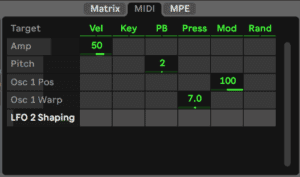
- Touch a parameter you want to modulate and it will immediately appear in the Modulation Matrix.
- Identify the modulators you want to use. These may include LFOs, envelopes and Midi functions such as velocity, aftertouch. There is also a page to use MPE parameters
- Identify the destinations you want to modulate. These may include parameters such as filter cutoff, resonance, wavetable position, or oscillator pitch, among others.
- Each modulator can control multiple destinations.
- Select the destination you want to modulate from the list of available destinations.
- Set the modulation amount numerically to adjust the depth of the modulation. This may involve clicking and dragging a slider or knob, or typing in a numerical value.
- Repeat steps 4-6 for any additional modulators or destinations you want to use.
- Play a note on your MIDI controller to hear the sound with the assigned modulations in action.
- Adjust the modulation settings as needed to achieve the desired sound.
Do this now
- Load Wavetable and assign Envelope 2 to Osc 1 Position at 100%.
- Set a slow attack and hold a note. Listen to the table scan.
- Now assign an LFO to the same destination, synced to 1/8.
Envelope for a one-shot journey, LFO for a cycle. Same destination, different musical job.