This is the single most useful thing Sampler does that Simpler cannot, and almost nobody uses it: one Sampler holding twenty kicks, with a macro knob that swaps between them while the beat plays.
Build it
- Load Sampler onto a MIDI track and drag in every kick you are considering — twenty is not too many. They land as separate zones.
- Open the Zone editor and switch the tab to Select. You now get a blue Selector bar instead of key ranges.
- Click Distribute Ranges Equally so each kick gets an equal slice of the selector.
- Drag the blue selector across. Every sample plays in turn, at whatever note you are holding.
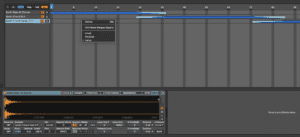
Right there you have an auditioning tool that beats dragging files out of the browser one at a time — you can hear each kick in the track, in context, with the rest of the beat playing.
Now make it playable
- Ctrl-click Sampler's title bar and Group it. It becomes a Drum Rack cell.
- Right-click the Selector and map it to Macro 1.
- Rename the macro *Kick*.
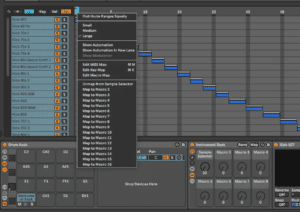
One knob, twenty kicks, live. Turn it while the loop runs and pick the one that works instead of the one you happened to load first.
Then do it for everything else
Repeat with snares in the next cell, hats in the next, claps, percussion. Each cell gets its own Sampler, its own selector, its own macro. Eight macros, eight sound families, one rack.
Save it as a preset. This is a build you do once and use for years, and it gets better every time you add samples to it.
The bit worth stealing
The macro is a normal automatable parameter. Automate it and the kick changes mid-pattern — a different sound on the last bar of every eight, or a snare that swaps for one hit in the fill. That is very hard to do any other way and takes about four seconds here.