Sampler's modulation section is where a sample stops being a recording and starts being an instrument. Two things to know: the spare envelope, and the three LFOs.
AUX Env: the spare envelope
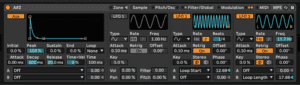
Volume, filter and pitch each have their own envelope already. AUX Env is a fourth, wired to nothing — you point it wherever you like using the A and B destination selectors at the bottom of the Modulation tab.
Which makes it the envelope for the thing you actually want to move: loop start, sample offset, an FM amount, pan. Anything on the destination list.
The LFOs
LFO 1 is hardwired to Volume, Filter, Pan and Pitch — the four obvious ones, ready to go. LFO 2 and 3 are free, and route through the same A/B destination selectors as AUX Env.
That gives you five independent modulators in one instrument, which is more than most synths.
Do this now: granular pads out of any sample
Modulating loop points is where this gets genuinely fun, and it turns any sample at all into a texture.
- Drop any audio file into Sampler — a vocal, a string note, a field recording. Long and boring is fine.
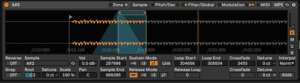
- In the Sample tab, turn on Loop and pull Loop Length right down until you are looping a tiny fragment. It should sound like a stuck record.
- Set the loop mode to Ping Pong — it removes the click at the loop point for free.
- Turn up Crossfade a little. Now it is smooth instead of stuttering.
- Go to the Modulation tab. Assign LFO 2 to Loop Start, slow rate, small amount.
- Hold a chord.
The loop is now crawling through the sample while you hold the note, and every note is slightly different from the last. That is a granular pad, built out of a device most people only use to play back drum hits.
Push it
- Add LFO 3 to Loop Length as well. The grain size now changes too.
- Assign AUX Env to loop start with a long attack — the texture evolves over the note instead of cycling.
- Set one LFO to a synced note value and leave the other free-running. The interference between them is what stops it sounding mechanical.
- Detune the whole thing slightly and add a reverb. That is a finished pad.