FM is the best way there is to build drums from nothing. No samples, no layering — two operators and an envelope will give you a kick with more weight than most sample packs.
Build a kick
- Load Operator. Turn off oscillators C and D — you need two.
- Set the algorithm to 1C3M (far left), so B modulates A.
- Oscillator A: sine, Coarse 1. This is the body of the kick.
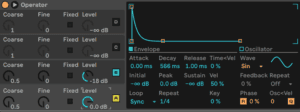
- A's volume envelope: attack 0, decay around 250 ms, sustain -inf. Play a note — that is already a low thud.
- Now the important part. Turn on the Pitch envelope, target it at oscillator A, and give it a very short decay and a large amount. Play again.
That pitch drop at the front of the note is the entire difference between a sine wave and a kick drum. Everything else is decoration.
Add the click
Bring oscillator B in as the modulator, Coarse somewhere between 3 and 8, with its own very short envelope — attack 0, decay 5–20 ms.
B is now adding harmonics for the first fraction of a second and then getting out of the way. That is the beater hitting the skin. Move B's coarse ratio and the click changes character: low ratios thump, high ratios crack.
Snares, hats and everything else
- Snare — same setup, but detune B off a whole-number ratio so the harmonics turn inharmonic and metallic, and add a noise oscillator underneath with a fast decay.
- Hats — noise waveform on the carrier, very short decay, high-pass in the filter section. Ride cymbals are the same with a longer decay.
- Toms — the kick recipe with a slower pitch envelope and a longer body decay.
- Cowbell — two modulators at inharmonic ratios, no pitch envelope. The classic 808 cowbell is nothing but a pair of badly tuned squares.
Looped envelopes: rhythms from one note
Set any envelope's Loop Mode and it retriggers itself while the note is held. Use Beat or Sync rather than Loop and the retriggering locks to the grid.
- Take your kick and set A's envelope loop mode to Sync.
- Set the Repeat value to 1/4.
- Hold one note.
Four to the floor from a single held note. Change Repeat to 1/8 or 1/16 and it is a rolling pattern; put the pitch envelope on a different loop rate and the pattern stops repeating itself in an obvious way.
Beat mode repeats on the grid but does not quantise your playing — play late and it stays late, perfectly in time with itself. Sync quantises the first hit to the nearest 16th, so everything after it lines up with the song. Sync is what you want most of the time; Beat is what you want when you are playing the part in by hand.
Finish it
Use the filter section's Shaper to add saturation — FM drums often need dirt to sit in a mix. Then program the pattern in a MIDI clip and duplicate the track for each drum, or drop the lot into a Drum Rack.
Do this now
- Build a kick from the recipe above: sine carrier, pitch envelope, short modulator click.
- Save it, then make a snare from the same patch by detuning the modulator off a whole number.
- Put both in a Drum Rack with a hat you also made.
A kit you synthesised bends in ways a sampled kit cannot.