Shifter: Pitch and Frequency Shifting, Ring Modulation
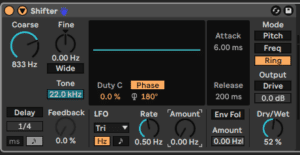
Shifter is a multi-purpose pitch and frequency-shifting audio effect that can be used to add ring modulation to incoming audio or to shift the pitch or frequency of audio in real time.
Three different Shifter Mode button switches are available: Pitch, Freq, and Ring.
Pitch mode adjusts the pitch of incoming audio up or down by a user-specified amount in semitones (Coarse tuning) and cents (Fine tuning).
Freq mode moves the frequencies of incoming audio up or down by a user-specified amount in Hertz. Small amounts of shift can result in subtle tremolo or phasing effects, while large shifts can create dissonant, metallic sounds.
In Ring mode, the user-specified frequency amount in Hertz is added to and subtracted from the input.
Drive enables a distortion effect, and the slider below it controls the level of the distortion. Note: Drive is only available in Ring mode.
The Dry/Wet knob sets the balance between the dry and processed signals at Shifter’s output.
A Pitch shifter shifts the energy at all frequencies (fundamental and harmonics)of the signal by a proportional amount, maintaining the harmonic structure of the sound
A Frequency shifter shifts the energy at all frequencies by a fixed amount. This changes harmonic relationships, with harmonic overtones converted into inharmonic partials. Use Fine for chorusing!
Use Pitch to double or harmonize a vocal part. Use the Window function to optimize quality
Frequency shifting is similar to ring modulation, but produces only either an upper or lower spectral sideband, while ring modulation produces both sidebands. With the ring modulator, two signals are multiplied by each other, resulting in the sum and difference of the two source. For that reason ring modulation tends to be more inharmonic and “clangorous” than frequency shifting.
Use ring modulation with Fine for Tremolo effects (using wide) or to tune drum sounds.
The Envelope Follower tracks amplitude and turns it into modulation signal. Release >sustain\
The LFO will modulate the frequency using the waveforms provided.
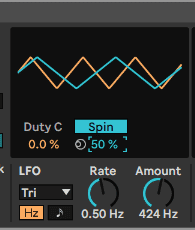
Spin detunes one side. Phase will offset the Phase of one of the stereo channels.
Sidechain Controls
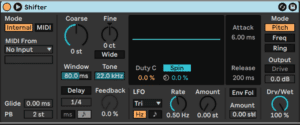
Pitch Mode
This determines how the pitch/frequency is set.
In Internal mode, the pitch/frequency is set by the pitch/frequency dial.
In MIDi mode, the pitch/frequency is set by an incoming MIDI note.
Midi Mode
Select midi input here
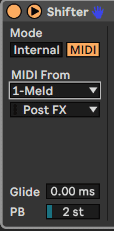
Tuning and Delay Section
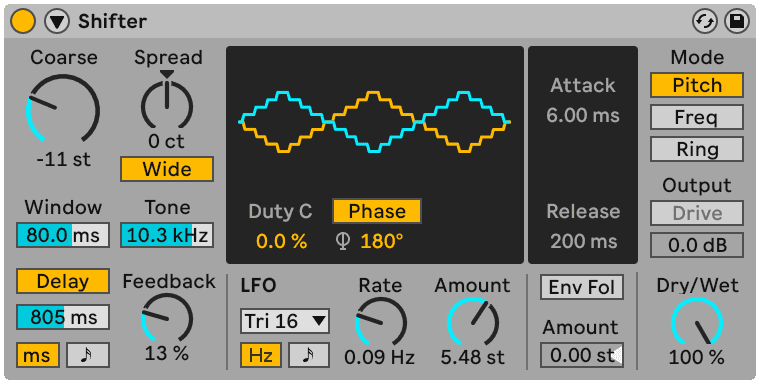
The Coarse and Fine knobs adjust the pitch or frequency in the given value, depending on which shift mode (explained in the Shifter Mode section (see ‘Shifter Mode Section’)) is selected.
Enabling the Wide button inverts the polarity of the Spread value for the right channel, creating a stereo effect. This means that increasing the Spread value will shift the frequency down in the right channel while shifting it up in the left. Note that Wide has no effect if the Spread value is set to 0.
In Pitch mode, the Window slider adjusts the window size used by the algorithm. Low frequency signals often sound best with longer window sizes, while high frequencies often sound best with shorter window sizes. Tone cuts the high frequencies of the delay’s feedback path.
Enabling the Delay button adds delay time that can be set using the slider control in Hertz or beat-synced divisions, depending on which Delay Mode button you select. The Delay Feedback knob sets the amount of the output that is fed back to the input of the delay.
LFO Section
You can modulate the left and right stereo channels using Shifter’s LFO.
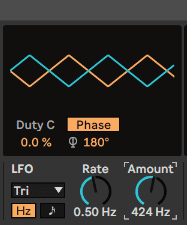
In the LFO waveform display, you can set the Duty Cycle and Phase/Spin/Width controls. Duty Cycle sets the duty cycle of the LFO waveform. Phase adjusts the offset between the waveforms for the left and right channel. At 180° the LFOs will be perfectly out of phase. Depending on the LFO waveform or the Rate parameter, Phase may be replaced by a Spin or Width control, as explained below.
When the Rate parameter (as described in further detail below) is set to beat-synced time divisions, you will see the Offset parameter next to the Phase parameter, which shifts the starting point of each LFO along its waveform.
There are several different LFO waveforms to choose from the LFO drop-down menu: Sine, Triangle, Triangle Analog, Triangle 8, Triangle 16, Saw Up, Saw Down, Rectangle, Random, and Random S&H.
The LFO waveforms Sine, Triangle, Triangle Analog, Triangle 8, Triangle 16, Saw Up, Saw Down, and Rectangle can also be set to Spin instead of Phase. Spin detunes the two LFO speeds relative to one another.
The LFO waveforms Random and Random S&H can only be set to Phase and Width, respectively. Width adjusts the Stereo width of the random LFO waveform. At 0%, the waveform is identical for the left and right channels. At 100%, the waveform is fully stereo, peaks on the left will correspond to valleys on the right and vice versa.
LFO modulation is controlled with the Rate parameter, which can be set in Hertz or synced to the song tempo and set in meter subdivisions (e.g. sixteenth notes). The Amount parameter sets the amount of LFO modulation that is applied to incoming signals.
Envelope Follower
Shifter’s envelope follower uses the amplitude from an incoming audio signal and translates it to a modulation source.
The Envelope Attack sets how quickly the envelope follower responds to rising input levels and the Envelope Release sets how quickly the envelope follower responds to falling input levels.
The Env Fol button switches on Shifter’s envelope follower. The Amount adjusts the intensity of the envelope follower’s modulation. The Amount value can be set in semitones in Pitch mode or in Hertz in the Freq and Ring modes.
24.38.4 Shifter Mode Section The Shifter Mode Section.
Sidechain Parameters
To access the Sidechain parameters, unfold the Shifter window by toggling the triangle button on the left of the title bar. There are two Pitch Modes available that determine how the pitch or frequency is set: Internal and MIDI. In Internal mode, the pitch or frequency is set by Shifter’s Coarse and Fine knobs. In MIDI mode, the pitch or frequency is set by an incoming MIDI note.
In MIDI mode, you will see a drop-down menu where you can select an external MIDI source. There is also a Glide parameter that adjusts the time in milliseconds over which it takes notes to slide their pitch to the next incoming pitch. You can set a pitch bend range between 0-24 semitones to define the effect of MIDI pitch bend messages using the PB slider.
Use for..
Pitch-shifted Drum Layers
To add glitchy, metallic echoes to a drum loop, duplicate your drum track and add Shifter after the Drum Rack. In Pitch mode, try adjusting or automating the Coarse knob and enable the Delay button. Higher pitch shifts will create a metallic and crisp echoed delay. Lower pitch shifts will create a drawn-out delay effect. You can lower the volume of the pitch-shifted track so that it sits in the background, adding some movement to the main drum track.
Phasing Effects
To create lush phasing effects, minimally adjust (no more than 2 Hz or so) the Fine knob in Freq mode. Phasing is caused by the interaction of the processed and dry signals; you can adjust the Mix balance so that both are audible. The strongest phasing will be heard when MIx is at 50%.
Tremolo Effects
In Ring mode, frequencies below the audible range (about 20 Hz or slightly lower) create a tremolo effect. You can also impart a sense of stereo motion to the tremolo by turning on Wide and using small Spread values.
Do this now
- Put Shifter on a vocal in Pitch mode and set it to +7 semitones with a short delay.
- Switch to Freq mode with the same setting and hear it go inharmonic.
- Now try Ring mode and use the LFO on the frequency.
Three modes, one device, and they sound nothing like each other.