Resonators and Spectral Effects
Resonators
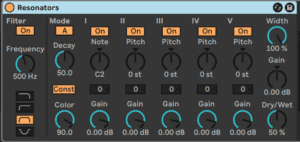
This is a legacy instrument in Live but it still packs a punch for interesting sound design, turning non tonal sound sources into musical chords or even drones..
It’s sonically in some ways a precursor of the Spectral Resonator however here we can add multiple tones to create chords.
This works particularly well with drum loops, but you could even turn white noise into a musical pad.
We can set up different up to 5 different Pitch intervals on top of a root Note. The five delay based Resonators are quantized to semitones and we can adjust the volume of each one independently with Gain.
At the input stage we have a Filter section that lets us remove unwanted frequencies to optimize the action of the Resonators. Then we alsohave global controls for overall Decay time and Color.
Const holds the decay time constant regardless of the actual pitch. When disabled, low notes decay longer than higher ones.
Note and Pitch can also be fine tuned and we can mix in a portion of the non tonal sound source as well using the Dry/Wet.
Spectral Resonator
Spectral Resonator uses spectral resonances and pitched overtones to add tonal character to any audio source. You can highlight chosen frequencies of the resonating partials and alter their decay, creating either short percussive reverberations or long washed-out tones. Choose which frequencies are affected through an internal resonator or via an external MIDI sidechain. Similar to a vocoder, you can use the MIDI input to place the resonances in key with its surrounding musical elements, playing the effect polyphonically with up to 16 voices. Spectral Resonator also offers several spectral processing types on the input signal, including spectral filtering, spectral chorus, and granularization.
Spectral Resonator uses a spectrogram to display how frequencies in the dry and wet signals behave over time. Dry signals are represented in yellow, while wet signals are shown in blue. You can hide the visualization by clicking on its toggle button.
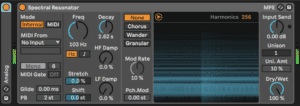
On the left side of the device, you will find the Pitch Mode section. Different controls are available depending on whether Internal mode or MIDI mode is selected.
When Internal mode is enabled, Spectral Resonator will be tuned to the frequency set by the Freq dial. The frequency can be set either in Hertz or to a specific pitch; to toggle between the two options, use the Frequency Dial Mode buttons. Note that the MIDI mode controls are disabled in Internal mode.
When MIDI mode is enabled, Spectral Resonator can be tuned to the frequencies of incoming MIDI notes. When MIDI mode is enabled, the MIDI router, Mono/Poly switch, Polyphony control, MIDI Gate, Glide and Pitch Bend range controls are also enabled.
The MIDI router allows you to choose any MIDI track as a source.
The Mono/Poly switch enables polyphony for incoming MIDI, enabling you to send polyphonic material such as chords to Spectral Resonator. You can choose between 2, 4, 8, or 16 voices in the Polyphony chooser. The number of harmonics set by the Harmonics control are evenly distributed between the voices, resulting in fewer harmonics per voice when high voice counts are used. The combination of high Polyphony and Unison values will create a darker sound.
When the MIDI Gate button is activated, the device behaves like an instrument, and will only resonate while MIDI notes are being played. In Polyphonic mode, MIDI Gate is always active, so you will need to play MIDI notes to produce sound.
The Glide parameter adjusts the time in milliseconds over which it takes notes to slide their pitch to the next incoming pitch. Note that this is only active in Mono mode. The PB parameter defines the effect of MIDI pitch bend messages, allowing a range of 0-24 semitones. Note that Spectral Resonator is also able to receive MPE.
The Harmonics parameter (in the upper right corner of the spectrogram) changes the number of harmonics. More harmonics will lead to a brighter sound and fewer to a darker sound. Note also that a higher number of harmonics increases the CPU usage.
Stretch increases or decreases the spacing between the harmonics. Values below 0 will compress the distance, while values above 0 will stretch it. At 100%, only odd harmonics are created, which leads to a square-wave type sound.
Shift transposes the input signal’s spectrum up or down within a range of +/- 48 semitones. Note that this does not shift the spectrum of the actual effect, but rather the spectrum of the signal which is fed to the effect.
Decay adjusts the decay time in milliseconds. A higher value leads to sustained tones. HF Damp sets the amount of damping applied to high frequency partials. LF Damp sets the amount of damping applied to low frequency partials.
For both HF Damp and LF Damp, the frequencies affected by the control shift with the pitch of the Freq knob (when in Internal mode), or with any incoming MIDI notes (when in MIDI mode).
Using the available switches, you can choose between four Modulations Modes:
- None applies no modulation.
- Chorus applies triangle wave modulation for every partial. When Mod Rate is set to 0, this mode only modulates the amplitudes of the partials.
- Wander uses random sawtooth waveforms as the modulation source for each partial.
- Granular modulates the amplitude of all partials randomly, using exponential decay envelopes. The partials are generated at random and, in this mode, the Mod Rate parameter affects the density of the partials.
Both Wander and Granular modes will affect each individual Unison voice, creating very warbly, dense and indistinct sounds.
All Modulation Modes are also affected by the Mod Rate and Pch. Mod (pitch modulation) parameters. Mod Rate sets the modulation rate, while Pch. Mod adjusts the range of pitch modulation in semitones. Though Pch. Mod displays only a positive value, pitch modulation is applied in both a positive and negative direction (except in Granular mode, where the grain envelopes are only applied in a positive direction).
The Input Send dial sets the amount of gain applied to the processed signal. There is also a built-in limiter, to ensure that no signal gets too loud. The LED next to the Input Send dial will light up if the limiter is in use.
The Unison parameter allows you to choose 1, 2, 4, or 8 voices, while Unison Amount (displayed as “Uni. Amt”) adjusts the intensity of the unison effect. A higher Unison value increases the number of voices, and increasing the Unison Amount causes the voices to become further detuned from each other.
The Dry/Wet adjusts the balance between the processed and dry signals and modifies the visibility of the two signals in the spectrogram. Set Dry/Wet to 100% when using Spectral Resonator in a return track.
Resonators Ableton 12.2 Updates
- The Resonators device now supports scale awareness, which you can enable via the Use Current Scale toggle in the device title bar. When enabled, the Note and Pitch controls can be transposed in scale degrees.
- The Resonators device also now supports tuning systems. When a tuning system is loaded, the resonators' pitches can be adjusted based on the tuning's set of pitches, and the Note and Pitch controls use integers rather than note names or semitones.
Spectral Resonator
- The Spectral Resonator device now supports scale awareness, which you can enable via the Use Current Scale toggle in the device title bar. When enabled, the Frequency control can be adjusted in scale degrees when using MIDI note values. When using MIDI Mode, the Transpose control can be set in scale degrees. You can also quantize the resonator's harmonics to the scale by enabling the Quantize option above the Spectrogram.
- The Spectral Resonator device also now supports tuning systems. When a tuning system is loaded, the Frequency control is set to the tuning's root note when using MIDI note values. Additionally, the control uses integers and not note names or scale degrees. As with scale awareness, you can enable the Quantize option to quantize the resonator's harmonics to the tuning's pitches.
Spectral Time: Delay Effect
Spectral Time combines time freezing and spectral delay effects in a single inspiring device. You can resynthesize your sounds by applying various spectral filters, delays and frequency-shifting techniques to incoming material, creating highly varied and unique copies. The freeze and delay effects can be used together or independently, allowing for a wide range of possibilities, such as sustaining any sound infinitely, or combining delays with time-synced fade transitions. You can easily transform sounds by smearing frequencies over time, or add metallic echoes and space to any sound source.
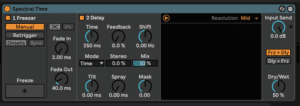
Spectral Time has two main sections, Freezer and Delay, which can be used individually or serially, with the freezer feeding the delay. You can toggle the individual sections using the Freezer On and Delay On buttons.
Spectral Time uses a spectrogram to display how frequencies in the dry and wet signals behave over time. Dry signals are represented in yellow, while wet signals are shown in blue. You can hide the visualization by clicking on its toggle button.
From Spectral Time’s [right-click](Win) / [CTRL-click](Mac) context menu, you can switch Zero Dry Signal Latency on or off. Enabling it reduces the latency of the dry signal to zero instead ofsyncing it with the output of the effect. This option is useful when playing a live instrument through Spectral Time and monitoring the output.
Freezer Section Delay Section Spectrogram
Spectral Time’s Freezer Section
Depending on which of the Manual/Retrigger Mode buttons are activated, the Freezer section controls how the freeze function is triggered and how certain temporal characteristics of the frozen audio are affected. Note that for both modes, the Freeze button also has to be toggled in order for the effect to occur.
In Manual mode, audio can be frozen by clicking on the Freeze button. You can also control the Fade In and Fade Out time of the frozen signal in milliseconds.
In Retrigger mode, you have more controls to fine-tune the rhythm of the frozen audio, which can be frozen automatically at every transient (onset), or at regular intervals.
Onsets mode will freeze the audio after a transient is detected in the input. Use the Sensitivity knob to adjust the sensitivity of onset detection. Sensitivity is highest at 100% and lowest at 0%.
Sync mode will freeze the audio at regular intervals, determined by the Interval control. By toggling the Freezer Time Unit buttons, the Interval control can be set to either milliseconds or beat-time values.
In both Onsets and Sync modes, the Freezer Fade Shape buttons toggle between two available fade shapes: Crossfade and Envelope. Both fade shapes have different controls to determine how a new freeze will fade in and out.
When the Crossfade shape is selected, the new freeze will fade in and the old freeze (or dry signal) will fade out. The crossfade duration is set by the X-Fade control, which specifically determines the time in milliseconds over which a new freeze will fade in as a percentage of the sync interval set by the Interval control.
When the Envelope shape is selected, a new freeze will fade in and out according to the millisecond time values chosen in the Fade In and Fade Out parameters. In this mode, up to eight simultaneous freezes can be stacked on top of one another.
The Delay section can be activated or deactivated with the Delay toggle button and allows you to create delayed copies of spectral information. If the Freezer section is en- abled, the Delay section will be fed by the Freezer’s output.
The Time parameter controls the delay time for the spectral delay lines. The type of value shown here is dependent on the unit type chosen in the “Mode” drop-down chooser:
•Time mode adjusts the delay time in milliseconds.
•Notes adjusts delay time in beat divisions.
•16th, 16th Triplet, and 16th Dotted set the delay time to the number of the chosen type of 16th notes.
Feedback sets the amount of output that is fed back to the delay input. Turning this up increases the audible echoes of the signal.
Live Audio Effect Reference 501
Shift shifts the frequency of the delayed signals. Each successive delay will be shifted up or down by the specified frequency amount.
Stereo adjusts the width of the Tilt and Spray controls.
The Dry/Wet control adjusts the balance between the delayed and dry signals. Note that this only affects the Delay section of the device.
Tilt skews the delay times for different frequencies. A positive value will delay high frequencies more than low frequencies, while a negative value delays low frequencies more than high fre- quencies.
Spray distributes the delay times for different frequencies randomly within the given time range.
Mask limits the effects of the Tilt and Spray controls to either high or low frequencies. Positive values limit the effects to high frequencies, while negative values limit the effects to low frequen- cies.
Do this now
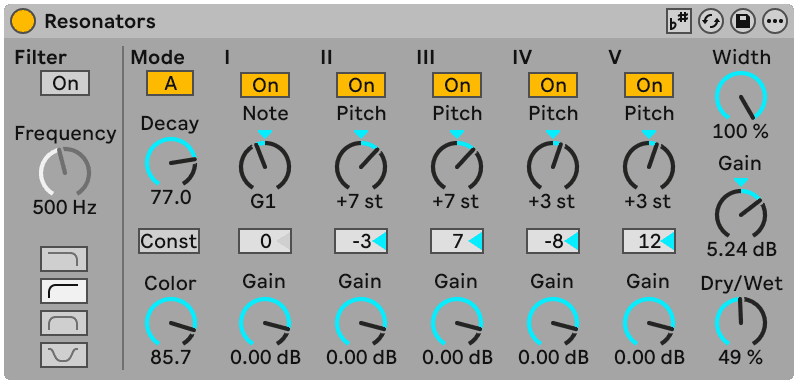
- Put Resonators on a drum loop and tune the bands to the key of your track.
- Pull the Dry/Wet back to about 30% so it colours rather than replaces.
- Then swap it for Spectral Resonator in MIDI mode and play the drum loop from the keyboard.
The second half of that is the one that will change how you think about drums.